
Adding a feed
Select the feed type
From Rocket Shopping Feeds screen, hit the + Add New Feed button.
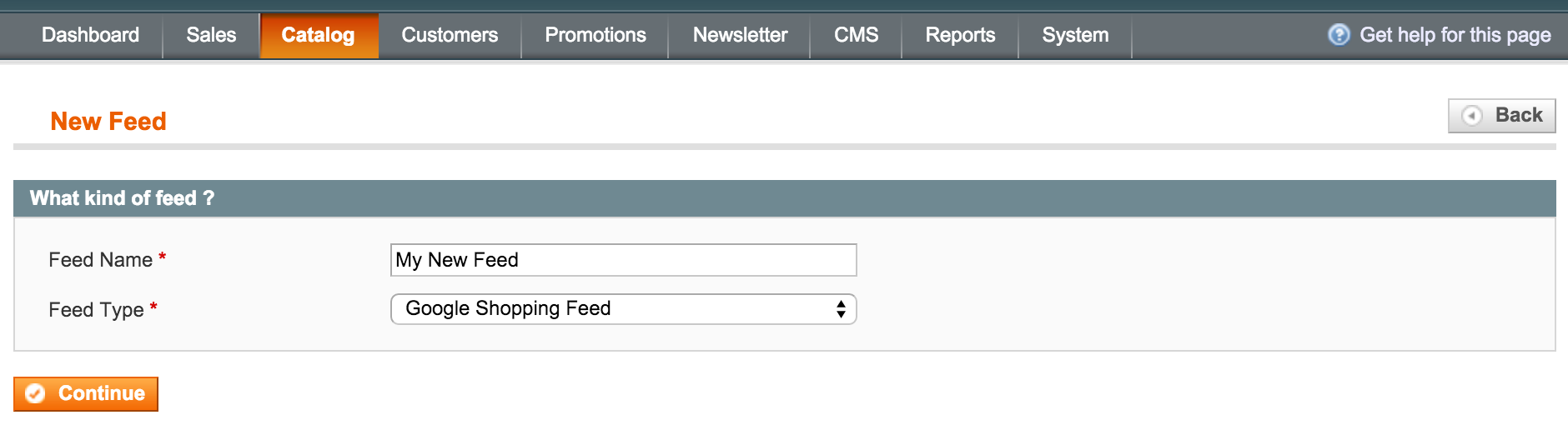
A new dialog window will open to let you choose what kind of feed you would like to add and set a name for it. (see Fig 3.5)The Feed Type dropdown only shows options available for your install. If you're not seeing the type you need, check whether it's available for purchase at Xtension Galaxy.
Fig 3.5 Adding a new feed
Review feed configuration
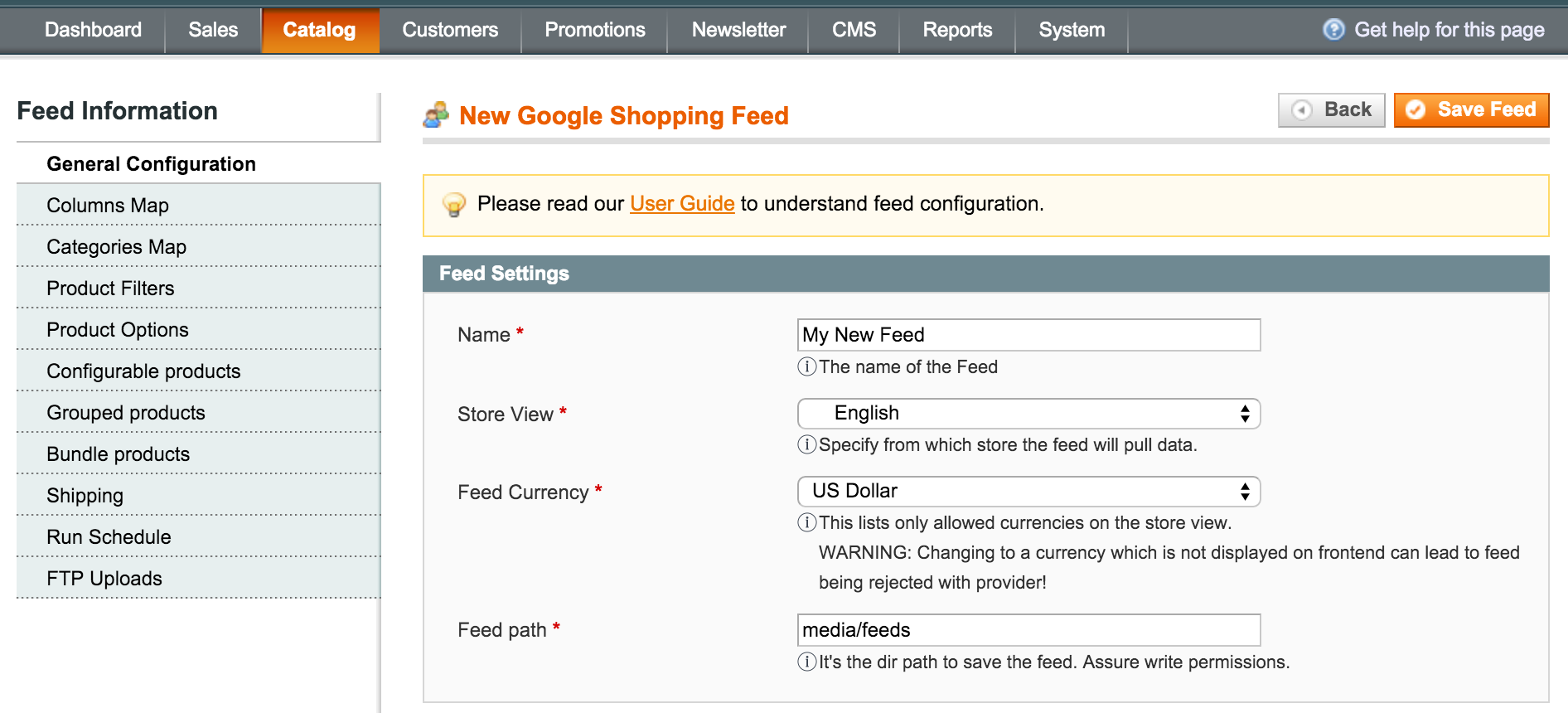
By pressing the Continue button, the next step will be brought up, which lets you adjust feed output settings for your new feed.
For default output settings, just hit Save Feed to finish adding it, and continue the Getting started steps which correspond to the marketplace and feed type you have chosen. (see Fig 3.6)
Fig 3.6 General Configuration Tab
No comments to display
No comments to display