
Installation & upgrades
Backing up
Installing or upgrading this extension will make changes in your database, so it is best to have a backup of your database before proceeding.
Requirements
- min PHP 5.3.x
- Magento CE > 1.4.2, EE > 1.9.2
Step-by-step guide
Follow these steps to install the extension, or to upgrade from an older version of the extension.
Disable Compilation
In the Magento admin panel, go to System >Tools > Compilation. In case Compiler Status is "Enabled", click on the Disable button. In case the status is disabled you can skip this step. (see Fig1.1)
Fig 1.1 Disable Compiler Status
Download and Extract
Download and extract (unzip) the extension's contents on you computer. Navigate inside the extracted folder.Upload files
Using a FTP client, upload the content of the extension directory to the store's document root, so that the app directory in the extension folder merges with the app directory on the server. If asked to replace any files, select "Yes".Clear the cache
In the store admin panel, go to System > Cache Management and press Flush Magento Cache button.(see Fig 1.2)
Fig 1.2 Flush Magento Cache
Set cron script
Magento's cron.php should be running each 5 min or more frequent. This can be set through CPanel or directly on your server console as show in the right snippet.
Replace MAGENTO_PATH with the actual path on the server.
Reach out to your hosting provider to help set it up. More on how to install magento cron.
An alternative would be to detach feed generation from magento cron.
crontab -e*/5 * * * * /bin/sh MAGENTO_PATH/cron.sh
Feeds Management
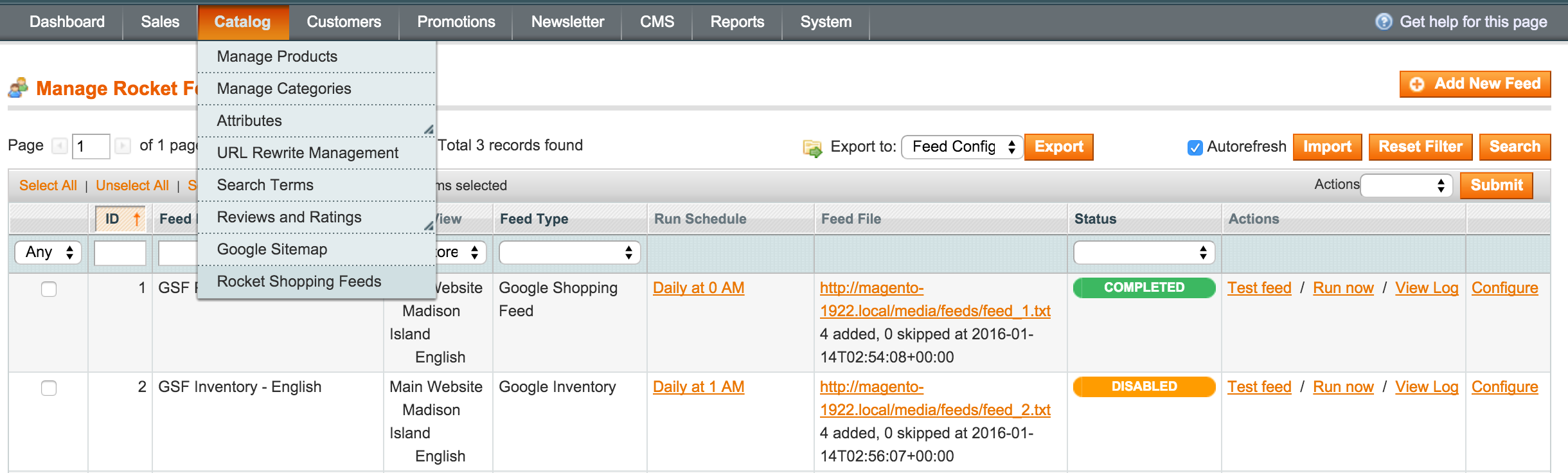
After the extension was installed, look under Catalog > Rocket Shopping Feeds in the store admin, to start setting up your feeds. (see Fig 1.3)
Read more about managing your feeds.
Fig 1.3 Rocket Shopping Feeds
Troubleshooting
- I don't see Rocket Shopping Feeds in the admin.
Please verify that you have turned off compilation. If compilation is off, make sure you have uploaded all the files in the store's web root. - I get 404 when trying to access the feed's admin.
Logout & Login back into the shop admin panel to refresh admin permissions that allow access to the new installed section. - My site is broken.
Our extension is significantly modularised and we have never yet seen it break any site when it's fully uploaded and compilation is off. If your site does break, try reverting from a backup and contact us for support through http://help.rocketweb.com
Uninstall
Most of the times, you don't really have to completely remove the extension, you could just disable it from: app/etc/modules/RocketWeb_GoogleBaseFeedGenerator.xml
If you do want to completely remove this extension, open a shell console to your server and run shell/gsf_uninstall.sh script. This script will attempt to remove all extension files and also cleanup your database. Alternatively, you could manually remove all files from your server, by following the archive structure to find out where files are located on your store.
No comments to display
No comments to display