
Columns Map
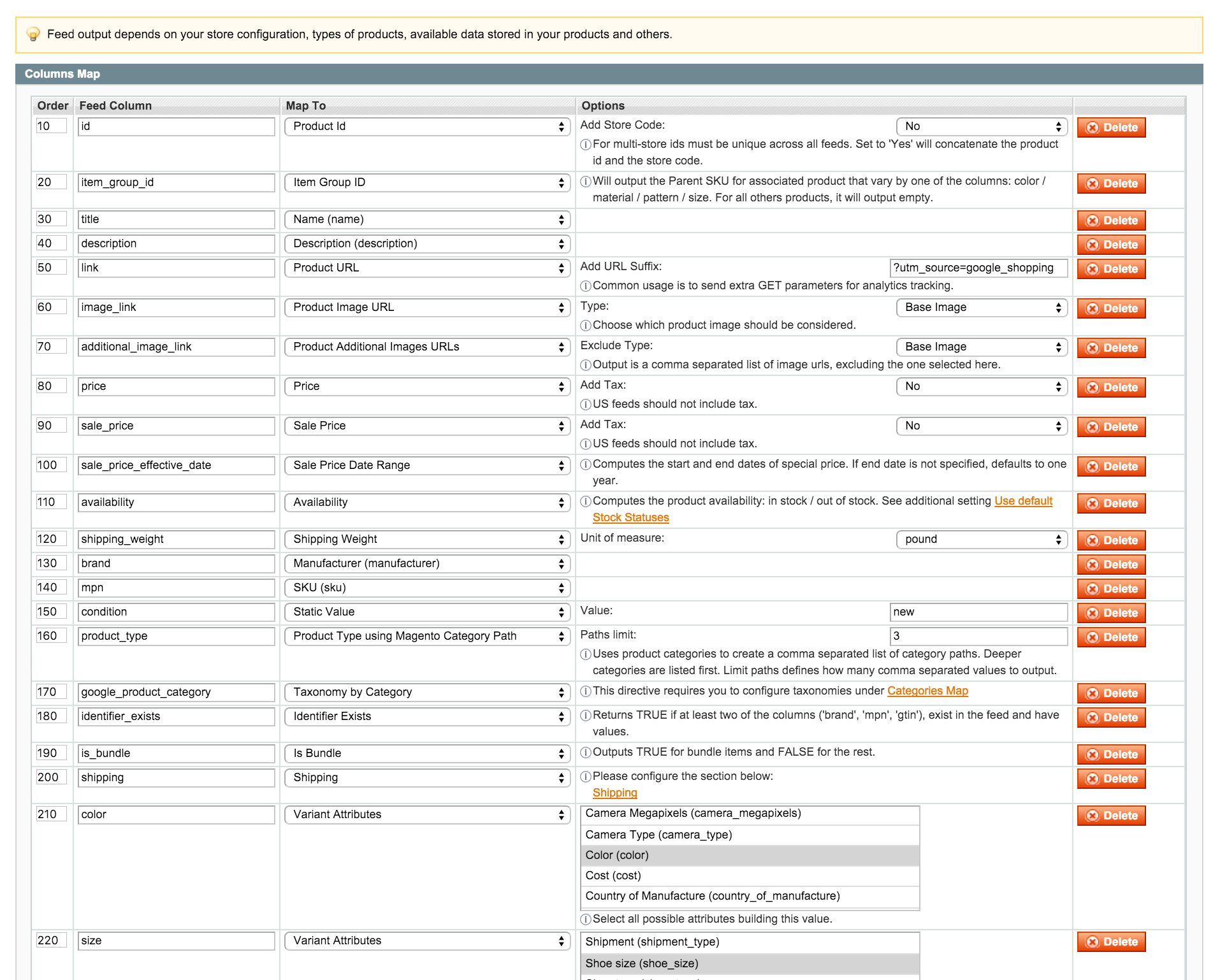
Feed Columns allows you to map any column to any product attributes, or to directives implementing special logic meant to follow marketplace specifications.
Please check with the marketplace feed specifications to understand what the feed columns should be.
The Column Map grid features the following:
- Order - allows you to define the columns order in the feed. Higher numbers go last.
- Feed Column - is the name of the column.
- Map To - can be either Directive (first options in the dropdown), or a product Attribute.
- Options - most Directives accept parameters that can be specified here.
Generally, it is recommended to associate directives (the first grouping in the dropdowns) to corresponding columns. Column names must be exactly as specified by marketplace provider.
When feed is added, depending on the marketplace feed type, a set of columns will be added by default. You can change and add more columns as you see fit, to better match your catalog data onto merchant feed specifications.
Save feed configuration !
Fig 4.4 Columns Map
Product URL
Processes product urls so that they match the type of product and listing in the feed. Set the additional parameter Add URL Suffix to further customize the end of a product URL with custom string.
The suffix can be used to track referring URLs in web analytics software. Setting this to ?utm_source=google_shopping will generate links like: http://mystore.com/product-url.html?utm_source=google_shopping. Products without assigned categories will not use the SEO friendly version of the URL.
Configurable associated products can append to this URL parameters to target their specific variant, see Unique urls for associated products not visible setting under Configurable Products section of the feed config. (see Fig 4.8)
Fig 4.8 Product URL
Product Image URL
Simply pulls the product's main image URL. Allows the option to set under the Type parameter, which images is the main image, by default it's set to Base Image.
If your product does not have an image assigned as the Base Image, your product may be skipped if "image_link" is under "Skip product with empty". If you notice problems, try removing it from skip rule. (see Fig 4.9)
Fig 4.9 Product Image URL
Product Category Image URL
Returns category image of the first category assignment found for your product. This should only be used for special cases where product images are defined on the category level. (see Fig 5.0)
Fig 5.0 Product Category Image URL
Toybanana External Image URL
Returns the value of product's "image_external_url", which comes packed with Toybanana_ExtImages extension. If you do not have the extension, you can simply create the image attribute and fill in the data for products. (see Fig 5.1)
Fig 5.1 Toybanana External Image URL
Product Additional Images URLs
This directive outputs a comma separated list of active image URLs for the product. Under the Exclude Type parameter should be set to the main image of the product, so that only the rest of images are added through this directive. (see Fig 5.2)
Fig 5.2 Product Additional Images URLs
Product Image URL 360_Magic
This directive outputs the main image managed by MagicToolbox_Magic360 extension. Under the Main Image no (0001) parameter can be specified which number of the image is the main image used with that extension. (see fig 5.3)
Fig 5.3 Product Image URL 360_Magic
Product Additional Image URL 360_Magic
This directive outputs other images managed by MagicToolbox_Magic360 extension, up to 10 images in a comma separated value. Under the Main Image no (0001) parameter can be specified which number of the image is the main image used with that extension so it can be excluded from the list. (see Fig 5.4)
Fig 5.4 Product Additional Image URL 360_Magic
Price
The price directive aims to match the price displayed on the product page, so it takes into account currency conversions, tax, promotions, MSRP and eco tax. Configurable, bundle and grouped items will have the minimal price of an item. Setting Add Tax option below to Yes will add tax to this price column, for US all prices should not include tax, the appropriate setting should be made here. The price output includes the currency information.
Msrp price is used in this directive when the product has msrp enabled and that value is bigger than the price itself, forcing Sale Price directive to display the regular price.
For products that have qty increments active, it will multiply the amount with the minimum number of items to purchase. (see Fig 5.5)
Fig 5.5 Price
Sale Price
This directive will output the lowest value for which the product can be purchased at. It computes the Special Price of the product, and any catalog promotion rules according to the Apply Catalog Price Rules setting from General Configuration section. Setting Add Tax option below to Yes will add tax to this price column, for US all prices should not include tax, the appropriate setting should be made here.
When Msrp is enabled, the value of regular price is used here if there are no running promotions at a lower value. Similar to Price directive it takes into account the qty_increments set for the product. (see fig 5.6)
Fig 5.6 Sale Price
Sale Price Date Range
The date interval is taken primarily from the product's Start / End dates of the special price. This interval will never output empty, so when no end date is specified for the product, the range will be set for a full year. If the start date is not specified on the product, the current processing date is considered.
This date range is mostly useful in the feed along with the Sale Price, specifying when this sale apply. (see Fig 5.7)
Fig 5.7 Sale Price Date Range
Availability
Uses regular magento stock information to compute whether a product is on stock or not. When the additional setting Use default Stock Statuses is set to No, a custom attribute specified under Alternate Stock/AvailabilityAttribute, will be used to specify the availability. See more settings under General Configuration section.
Accepted values for this directive are: 'in stock', 'out of stock', and 'preorder'. Other values will be replaced by 'out of stock'. (see Fig 5.8)
Fig 5.8 Availability
Inventory Count
Simply pulls the stock inventory qty information. The Count Mode defines how the qty count should be performed in case of complex products like bundle. (see Fig 5.9)
Fig 5.9 Inventory Count
Product Expiration in Feed
Computes an expiration date based on product creation and the "No. of Days" option below. Set "No. of Days" option to increase or decrease this date limit. (see Fig 6.0)
Fig 6.0 product Expiration in Feed
Shipping
This directive computes shipping information into accepted format, based on the shipping methods available for your products. To use this directive, Shipping section has to be configured on your feed. To specify which Shipping Methods and which regions will be considered please review Shipping section. (see Fig 6.1)
Fig 6.1 Shipping
Shipping Weight
Outputs the weight attribute of your products along with the unit of measure specified here under options. For bundle products, there's an extra setting called Combined weight found under the Bundle Products section. (see fig 6.2)
Fig 6.2 Shipping Weight
Variant Attributes (Apparels)
Allows for using multiple product attributes to specify a different value systems for the same property. It comes handy to map apparel specific properties.
Example of size property:
- shirts - shirt_size attribute, with values: Small, Large, X-Large, etc
- shoes - shoe_size attribute, with values: 8, 9, 10, etc
Using this directive you can select both attributes, and when processing the product, the appropriate value will be considered depending on whether a value is specified in one of the attributes. First attribute found having a value for the product is been used.
For configurable items, all values will be computed into a list of values delimited by comma, or a delimiter specified under Associated Product Attribute Value Separator setting under Configurable products section of the config. (see Fig 6.3)
Fig 6.3 variant Attributes (Apparels)
Product Options
This directive is used to output values of product custom options. This directive is used for apparel catalogs which hold the color and size variations as custom options instead of having those properties as configurable products items. It takes as argument the list of custom options names which should hold the values needed for the column you're setting up.
Each custom option in the argument has the number of products affected in the right (x). (see Fig 6.4)
The output of this directive also depends on how the Product Options section is configured, and it can be a list of possible values as comma separated, or it can be a single value in case the products is set to detail each options combination as separate row in the feed.
Fig 6.4 Product options
Adwords Price Buckets
This directive uses a set of rules defined under Adwords Price Buckets settings to output labels for different price ranges of your products.
A common usage is to add the google custom_label_0 column which is handy to group your products when running AdWords Shopping Campaigns. (see Fig 6.5)
Fig 6.5 Adwords Price buckets
To specify the upper limit of your prices, just use some big number like 99999999. See below example image.
Fig 6.6 Adwords Price buckets
Product Review Average
Output product's average rating in the interval 1 - 5. Returns 0 if no reviews have been approved on your product. (see Fig 6.7)
Fig 6.7 Product review Average
Product Review Count
Outputs the count of product reviews. Returns 0 if no reviews have been approved on your product. (see Fig 6.8)
Fig 6.8 Product Review Count
Product Type using Magento Category Path
This method is the default way of filling a categorised column of your products that can be used to fill product_type.
Your product category paths are converted into a string revealing the hierarchy like: Root > Categ A > Categ B. Product been assigned to Categ B. All product categories will be used to build a list of comma separated paths, and they are limited to the Paths limit value.
Categories are matched in order of priorities defined under category Map, if no priority values are defined, it will just match them the order found in the database. (see Fig 6.9)
Fig 6.9 Product Type using Magento Category Path

Taxonomy By Category
Uses a set of rules defined under the Map Taxonomy by Categories setting to output category taxonomies. (see Fig 7.0)
Fig 7.0 Map Taxonomy by Categories

Products will be matched through the set of rules using their assigned categories. The first category found with the most important category rules below will be considered. The rule importance is given by the Order rule column, lower values matching first.
Product categories do not necessarily need to have a direct correspondent rule to cover products deeper in the tree. High level categories set here would dictate inheritance for products deeper in the category tree. (see Fig 7.1)
Fig 7.1 Map Product Categories to Taxonomy
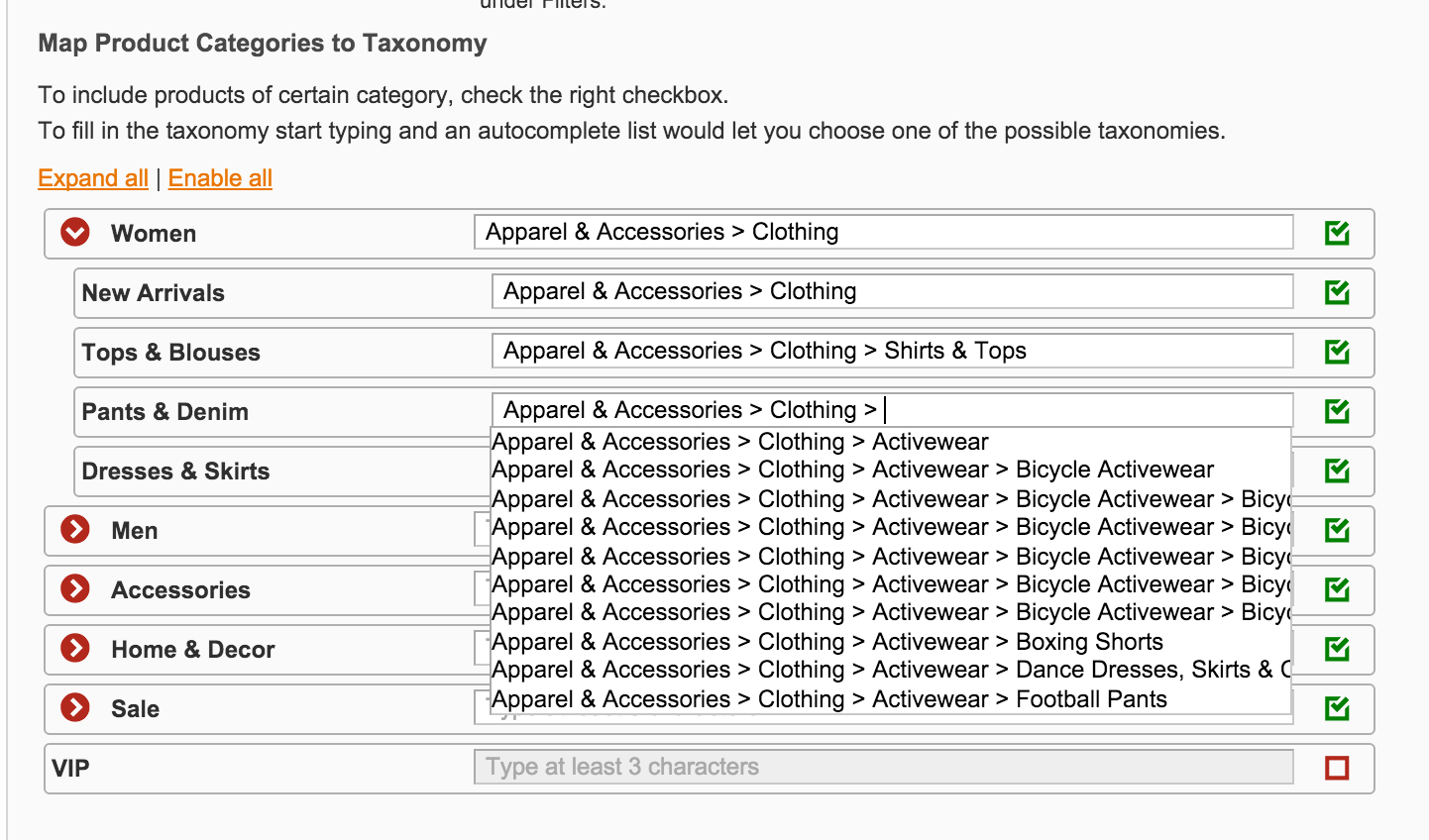
The more categories defied here, the granular your taxonomy definition becomes giving google a better and detailed view of your products.
We recommend that you set all rules with an order value. Setting higher Order values for high level categories, and lower Order value for deeper categories will make deeper categories will match first, dictating the output value.
It is advise to also set a Replace empty values rule to cover all missed categories from this set, and fill the values with a static default taxonomy or some product attribute holding the taxonomy.
Identifier Exists
This directive looks at your feed identification columns and checks for values. Default identification columns are: brand, mpn, gtin, and returns FALSE if brand or any of the mpn or gtin is missing, returns nothing otherwise. You you choose to customize the identification columns as a parameter, it will return FALSE if one of the columns is missing, otherwise returns nothing. (see Fig 7.2)
Fig 7.2 Identifier Exists

Concatenate
Allows you to compose a string using attributes of your products or other column values. (see Fig 7.3)
Fig 7.3 Concatenate
Use product attributes in this format: {{attribute_code}}. Attribute codes available for your products can be looked up under Catalog > Attributes > Manage Attributes. To use other column output in concatenation use the same format: {{column_name}}, and make sure the column is defined in the column map, and it is not mapped to another concatenation directive.
This method works like a replace in string function, and looks for the {{}} marker through the string template to replace it with the attribute or column value as specified.
The following placeholders will inherit values as defined in the 'Fetch ... from' settings from Configurable Products and Grouped Products configuration sections:
- {{name}}
- {{description}}
- {{url}}
- {{image}}
If all placeholders bring an empty value when computed, the column output itself will be empty. For example if the template is:
Concatenate of {{name}} and {{size}}
and {{name}} and {{size}} values in product are empty, the Directive will return empty string. Those values can be caught using Product Filters - Replace.
Is Bundle
Outputs TRUE if the item is a bundle item and FALSE otherwise. (see Fig 7.4)
Fig 7.4 Is Bundle
No comments to display
No comments to display