
Generating the feed
Feeds will generate automatically based on their Run Schedule, but if you need to manually generate a feed you could use the Run Now button in the feeds grid.
Manual run
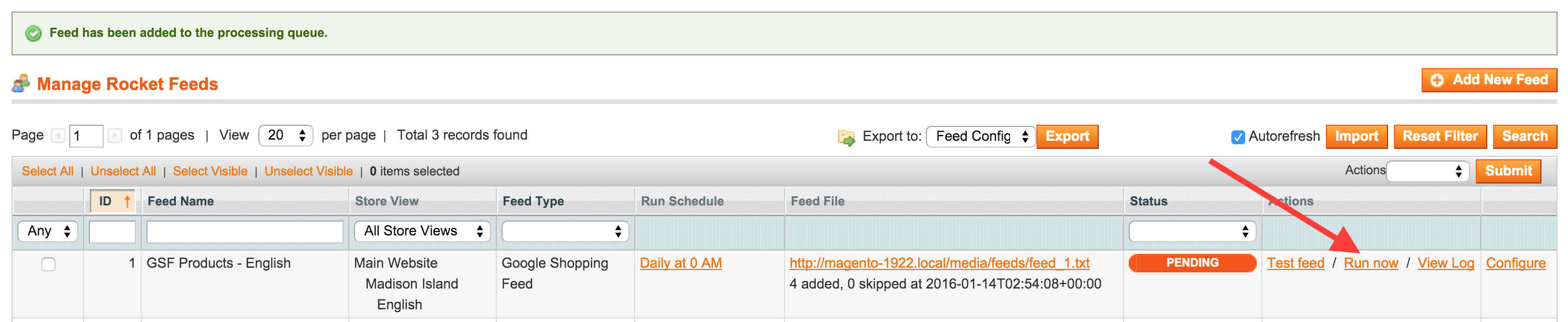
Go to feeds management screen and click on Run Now in the actions column, and the feed will be scheduled for the next cron run (usually in 5 min).
During this time the status of the feed will read PENDING. (see Fig 3.7)
Fig 3.7 Run feed manually
Scheduled run
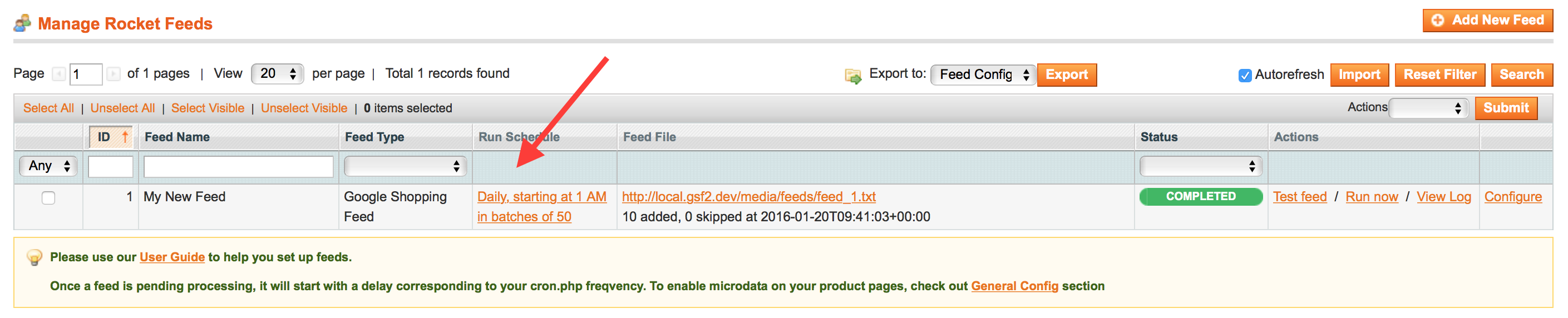
In the feeds management screen, the Run Schedule column shows the time(s) when the feed will start processing. When the scheduled time comes, feed will automatically go into PENDING status, and will start processing with the next cron run.
If you wish to change the schedule, click on the schedule link, or follow Run Schedule guide. (see Fig 3.8)
Fig 3.8 Schedule feed to run
No heartbeat detected. Feeds won't generate, please check magento cron is running. See possible solution on how to detach feed generation from magento cron.
If you see this warning, check step #5 Set cron script from Installation & upgrades. Once cron is installed it could take several minutes for this warning to clear.
Once the next cron runs (5 min), the feeds will start processing one by one, showing their progress with a percentage status. I.e. 10%, and under the Feed File, information about how many products where processed is displayed along with a link to download the feed file.
When the feed completes processing, the status will display COMPLETED.
If there where errors in processing the feed, status will display ERROR, and a detailed messages list about the errors can be found by clicking View Logs.
Check Testing and Troubleshooting for more information on how to solve issues.
No comments to display
No comments to display