
Set up ShareASale
You are required to have an active Shareasale.com merchnat account. Create an account and follow the merchant setup wizard, than come back to this page.
Configure and generate the feed.
- Follow the steps on adding a feed section and use Google Shopping Feed under Feed Type.
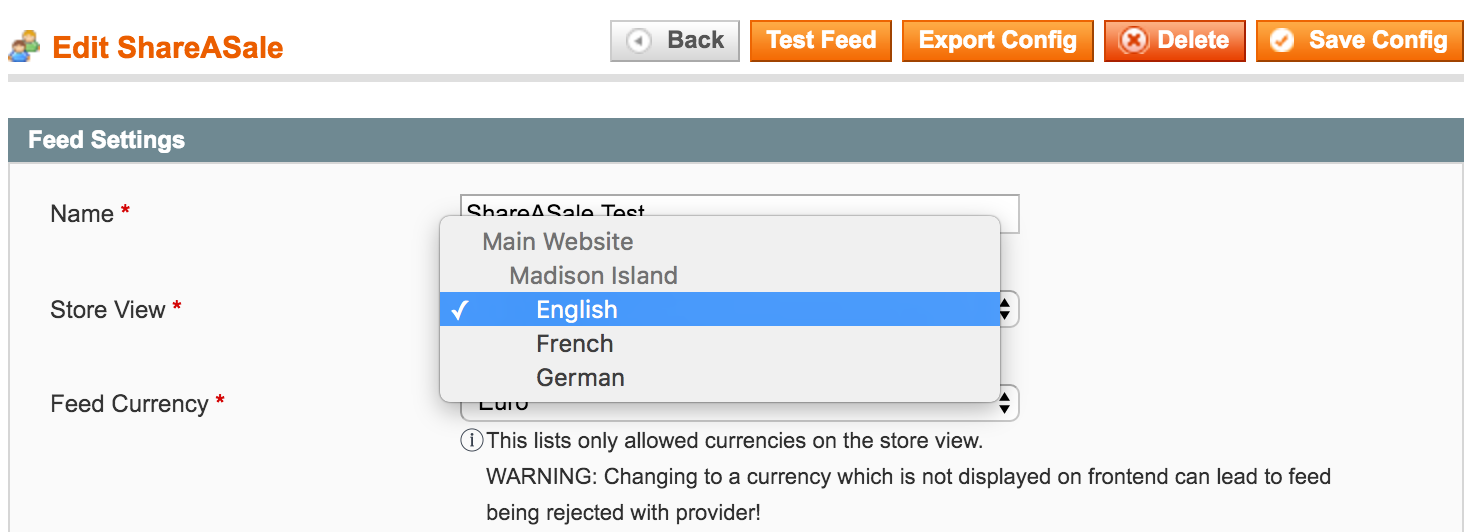
Set the target Store View.
If you have more than one store view, you may want to create a feed for each of them.
When you change the store view, Feed Currency should be set on the default displayed currency for that store. (see Fig 4.1)Save feed configuration !
Fig. 4.1 Store View selection
Categorize products under Categories Map tab.
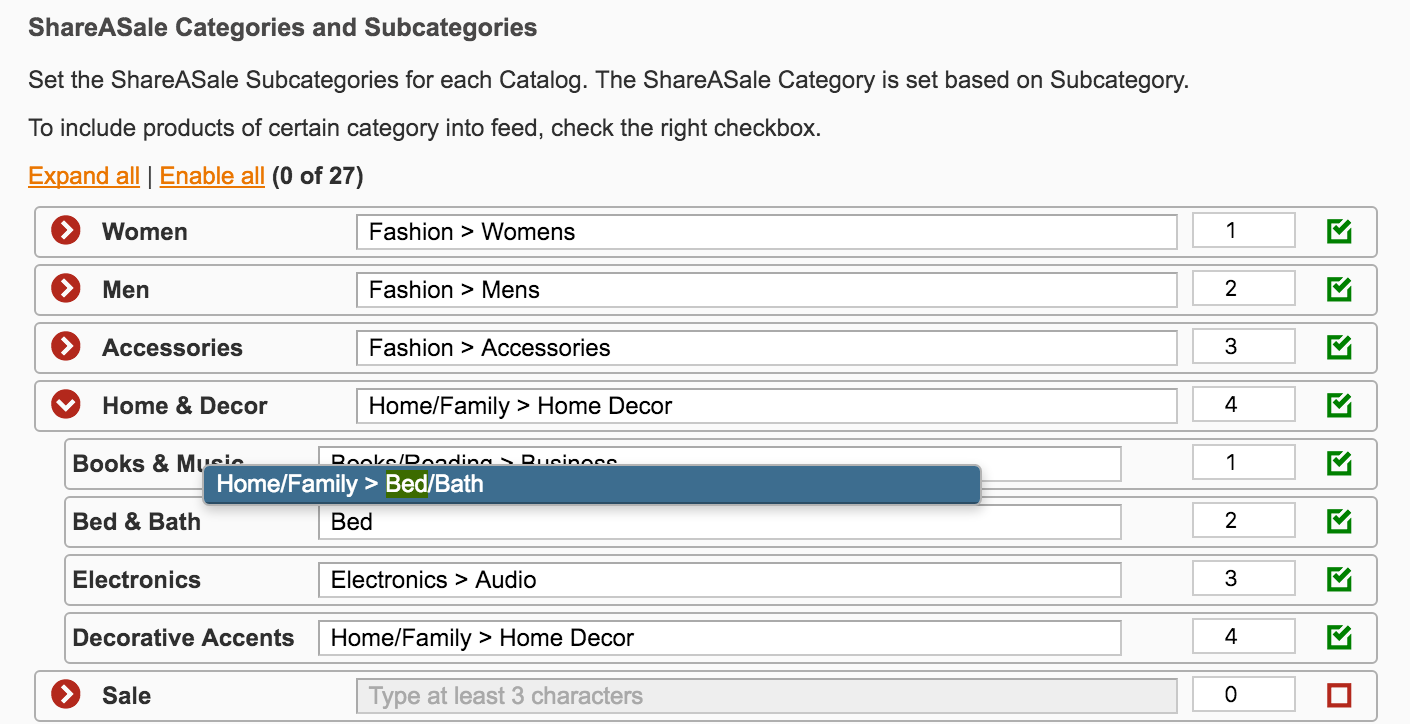
ShareAsale uses a list of product categories used to better target affiliate adds. Go through all categories and fill in the corresponding ShareASale taxonomy. Use the autocomplete, type something like "Bed" to pull the list of available values, and select appropriate ones. (See Fig 4.2)
The full list of categories you can choose from can be found at https://account.shareasale.com/m-productmassupload.cfm
In this screen you can also disable any of the categories holding products you don't want in the feed.
Save feed configuration !
Fig. 4.2 Product Categories
Adjust Columns Map tab.
Most of the feed columns should already be mapped to the correct output, but there are a few which need adjusting to your business:
Required:
Find the column named "merchantid", it should be mapped by default to a StaticValue, so go ahead and fill in the value. (See FIg. 4.3) You can find your Merchant ID by logging in into the merchant account and look it up next to the shareasale logo. (See Fig. 4.4)
Save feed configuration !
Optionals:
Few optional fields need to be mapped to custom magento attributes. Create attributes in your magento catalog for each of the entries below, than edit the Columns Map, find the column with the same name, and change the mapping to the correspondent attribute.
Fig. 4.3 Fill in merchantid in the feed's Columns Map

Fig. 4.4 Merchant Id under ShareASale

commission Float dollar amount of ShareASale commission as a quick reference for the affiliate. Ex: 14.50 partnumber Text manufacturer provided value that uniquely identifies this product. Ex: 6E086 isbn Text ISBN for this product, if applicable. Ex: 978-3-16-148410-0 upc Text UPC for this product, if applicable. Ex: 036000291450 compatiblewith Text Comma separated list of manufacturer partnumbers. Ex: 4E046, 5E033. compareto Text Comma separated list of manufacturer partnumbers. Ex: 4E046, 5E033. custom1 .. custom5 Text Any existing product attribute you would like to share with your affiliates. For products holding magento custom options, you could set up a maximum of 5, for which you'll have to edit the correspondent columns under Columns Map and select which of the options to output:
option1 ... option5 Text Any existing product custom option you would like to share with your affiliates. There's also a possibility to specify custom commission for your products, but once again you'll have to create product custom attributes for those and map those attributes under the next columns:
customcommissions Text Custom commission rate for this product. Can be a comma delimited list which indicates commission rate at each tier, starting with the base rate. For example, to specify a 10% base rate with a 12% rate at the first tier, use "10,12". customcommissionisflatrate Bit Populate with a 1 to indicate that the custom commission is a flat rate instead of a percentage. Populate with 0 or leave blank for a percentage value. customcommissionnewcustomermultiplier Float Multiplier for custom commission if the purchase is from a new customer. Those 3 commission fields require product level reporting in your ShareASale tracking code. You should contact ShareASale support to enable them.
Submit the feed to ShareAsale
- Generate the feed
Click the Run Now button in the feed feed management screen, and wait for the feed to complete. This will generate the feed file and also upload it to your Merchant Center. (see Fig 4.2)
Once the feed file has completed, download the file from feeds management screen, than compress the file to zip or gz as a preparation for feed activation. Upload the feed file to Merchnat Center
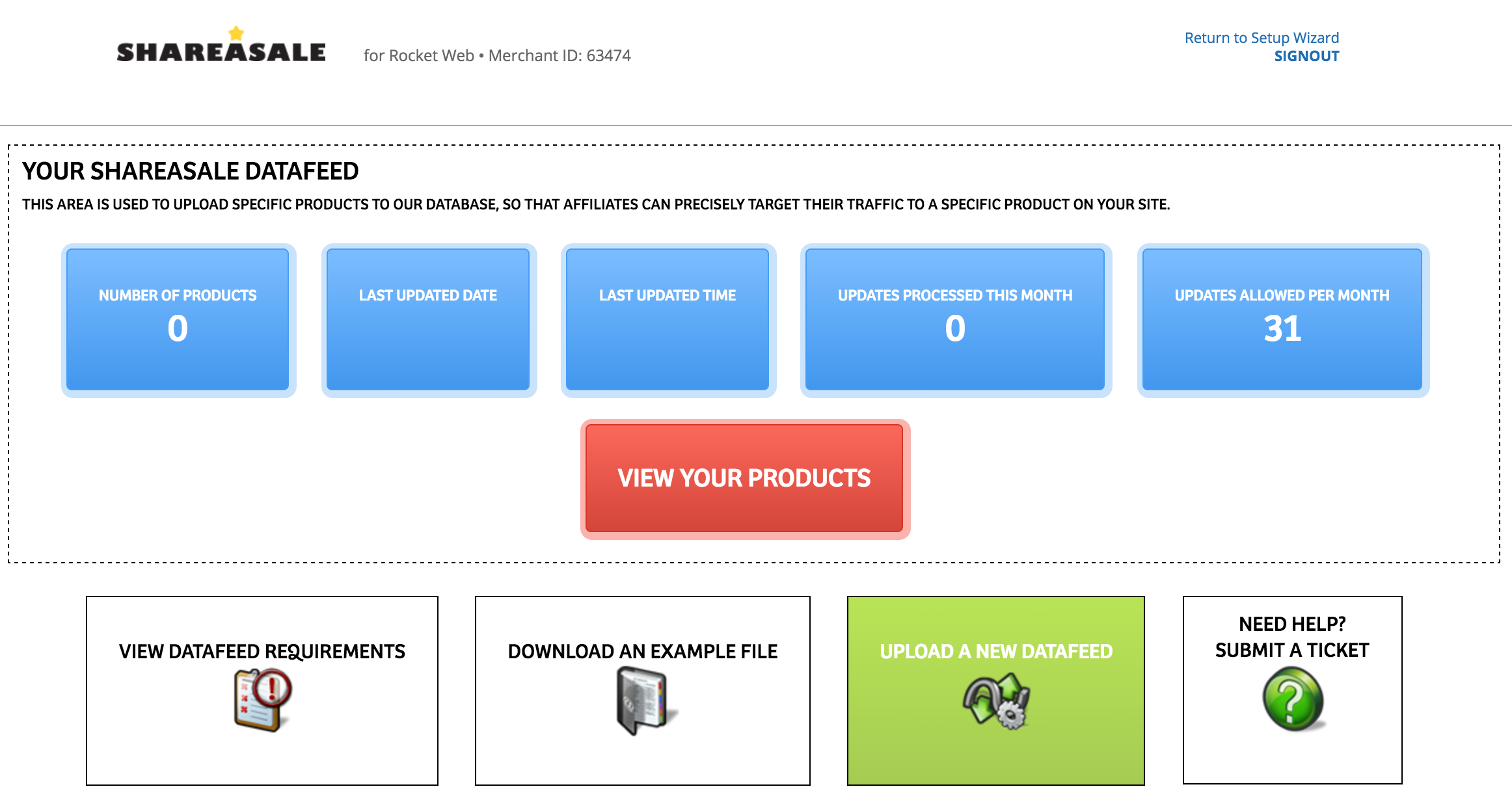
Login to ShareAsale merchant account, navigate to My Creatives > Datafeed > Product Management Center > UPLOAD A NEW DATAFEED. (see Fig 4.3).
Use the upload form to send the first feed file to ShareASale.
Fig. 4.2 Generate File
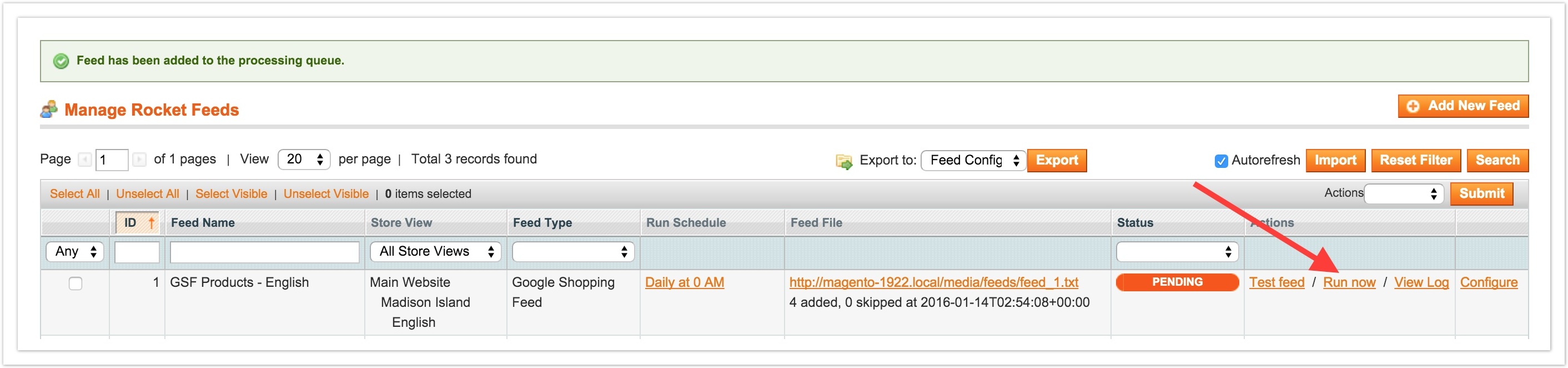
Fig. 4.3 Upload File
3. Set FTP uploads
Once the first feed file is uploaded to merchnat center, you may request FTP account details for uploading the file automatically each day.
Use the Submit Ticket button at the bottom of your merchnat center, or email share a sale support. (See Fig. 4.4).
We have uploaded our fist datafeed, and we would like to
receive instructions on uploading the file via FTP. Our
server IP address uploading the file is xxx.xxx.xxx.xxx.
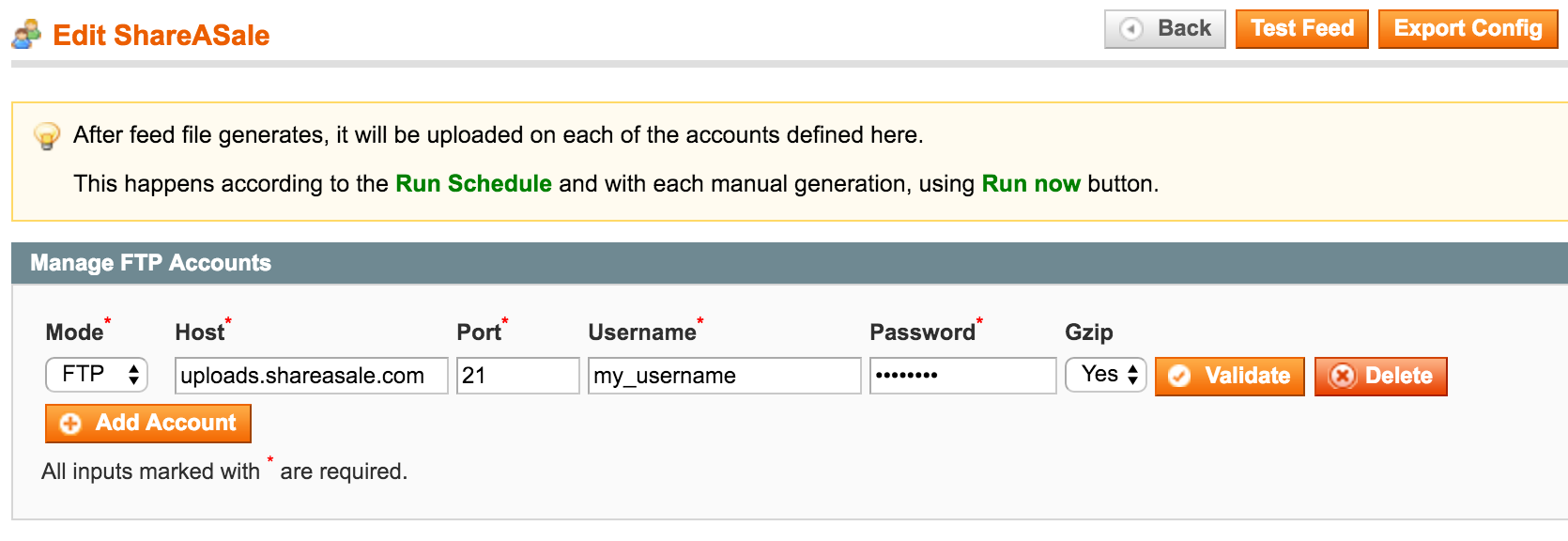
Ask your store hosting provider what the server IP is, and use it instead of xxx.xxx.xxx.xxx when sending the request. Once you get the FTP account details, go ahead and fill them in in your feed configuration under FTP Uploads tab (See Fig. 4.5).
Save feed configuration !
Feed will generate and upload a file update each day, so at this step you may also adjust the Run Schedule if you need to. Check our guide on Generating the feed for more details.
Fig. 4.4 Requesting FTP details
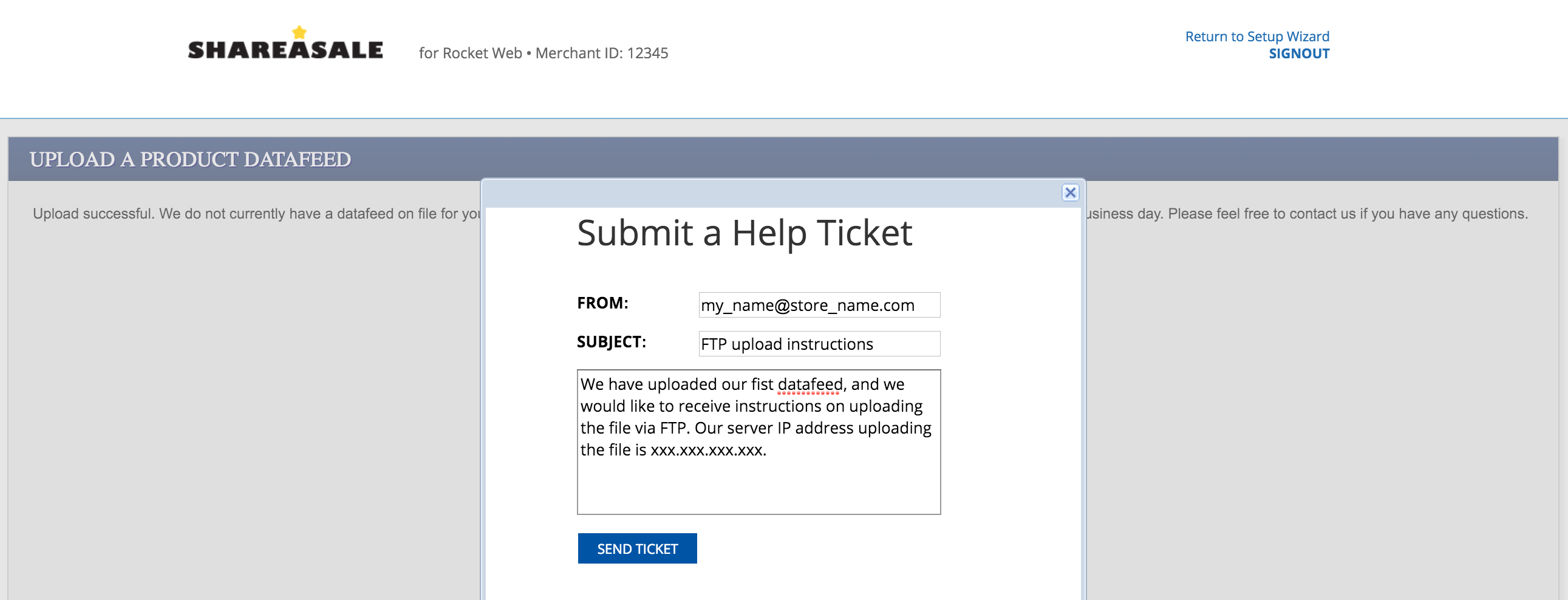
Fig. 4.5 FTP automatic upload account
No comments to display
No comments to display