
Set up Google Inventory
Inventory feed is needed for shops where products go out of stock quickly, or prices vary throughout the day.
This feed aims to keep your products up to date in google merchant center. By submitting this update more than once per day, you'll be keeping in sync the following product information:
- price and sale_price
- availability
In order to submit inventory updates, first you'll have to Set up Google Shopping feed.
Pre-requirements
Setting up inventory feed requires a Google Shopping feed to be configured and submitted to google. Check the Set up Google Shopping page to set up one.
Similar to Google Shopping, Inventory feeds are recommended to be submitted through FTP Uploads, so if you haven't done it already, configure an FTP account in your merchnat account
Configure inventory feed
- Clone your Google Shopping feed, and edit the Columns Map and delete all comlumns but: id, price, availability, sale_price, sale_price_effective_date
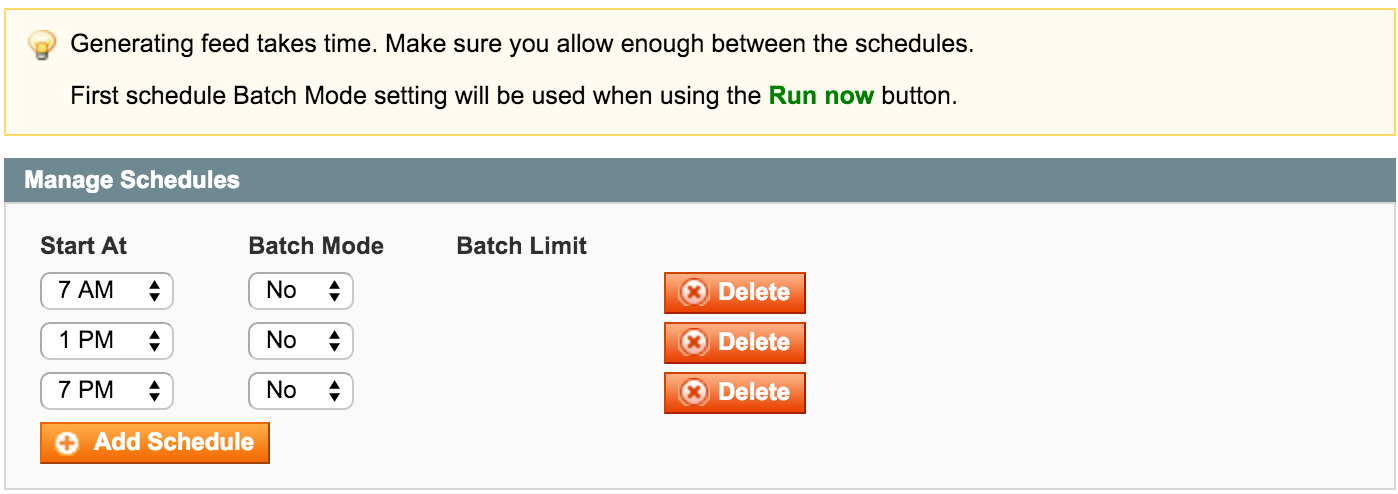
- Update the schedule to generate the file around 3 times per day, or each 6 hours.
For example if your products feed is schedule at 1AM, the inventory update should happen at 7AM, 1PM and 7PM. (see Fig 1.22)
Fig 1.22 Update schedule
Submit the feed to Google
Register the feed with Merchant Center
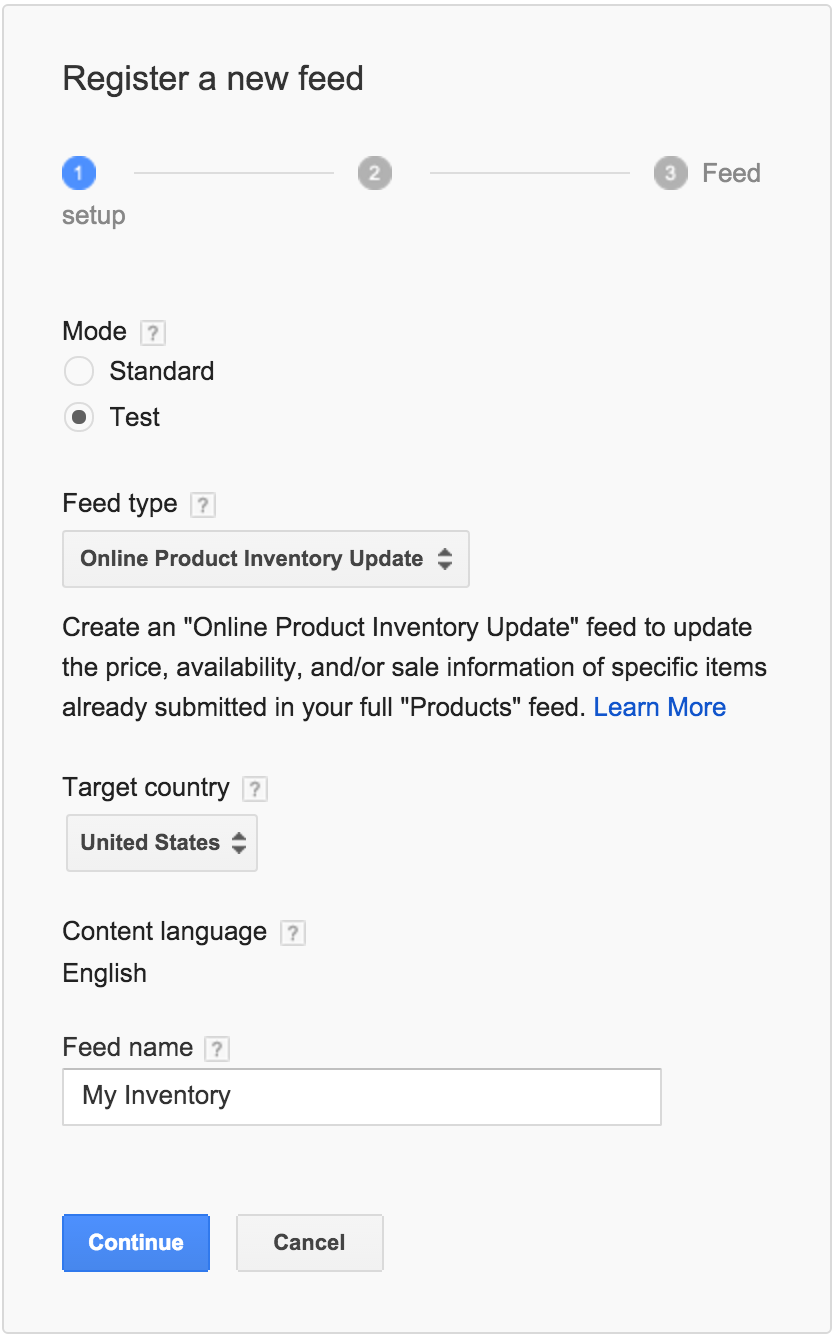
Navigate to Feeds under merchant center and select + FEED button, than follow the steps to register it:
Mode = Test,
Feed type = Online Product Inventory Update
Target country - should math the one set for google shopping feed.
Feed name - can be anything, but for consistency, name it the same way as you did in magento. (see Fig 1.23)Generate the feed
Click the Run Now button in the feed feed management screen, and wait for the feed to complete. This will generate the feed file and also upload it to your merhcnat ceneter.
Feed will process daily, so at this step you may also adjust the Run Schedule if you need to. Check our guide on Generating the feed for more details.
Analyze results
Once the feed has completed, go into the merchnat center and select the feed you just registered.
Check the number of item processed and see if there are any errors with processing. If there are errors, follow ourTesting and Troubleshooting section to help solve them.
Once you clear errors, register the feed live by redoing the step 1. only this time Mode = Live, and use the same feed_<id>.txt file as used for the test one.
Fig 1.23 Register feed with Merchant Center
No comments to display
No comments to display