
Configurable Products
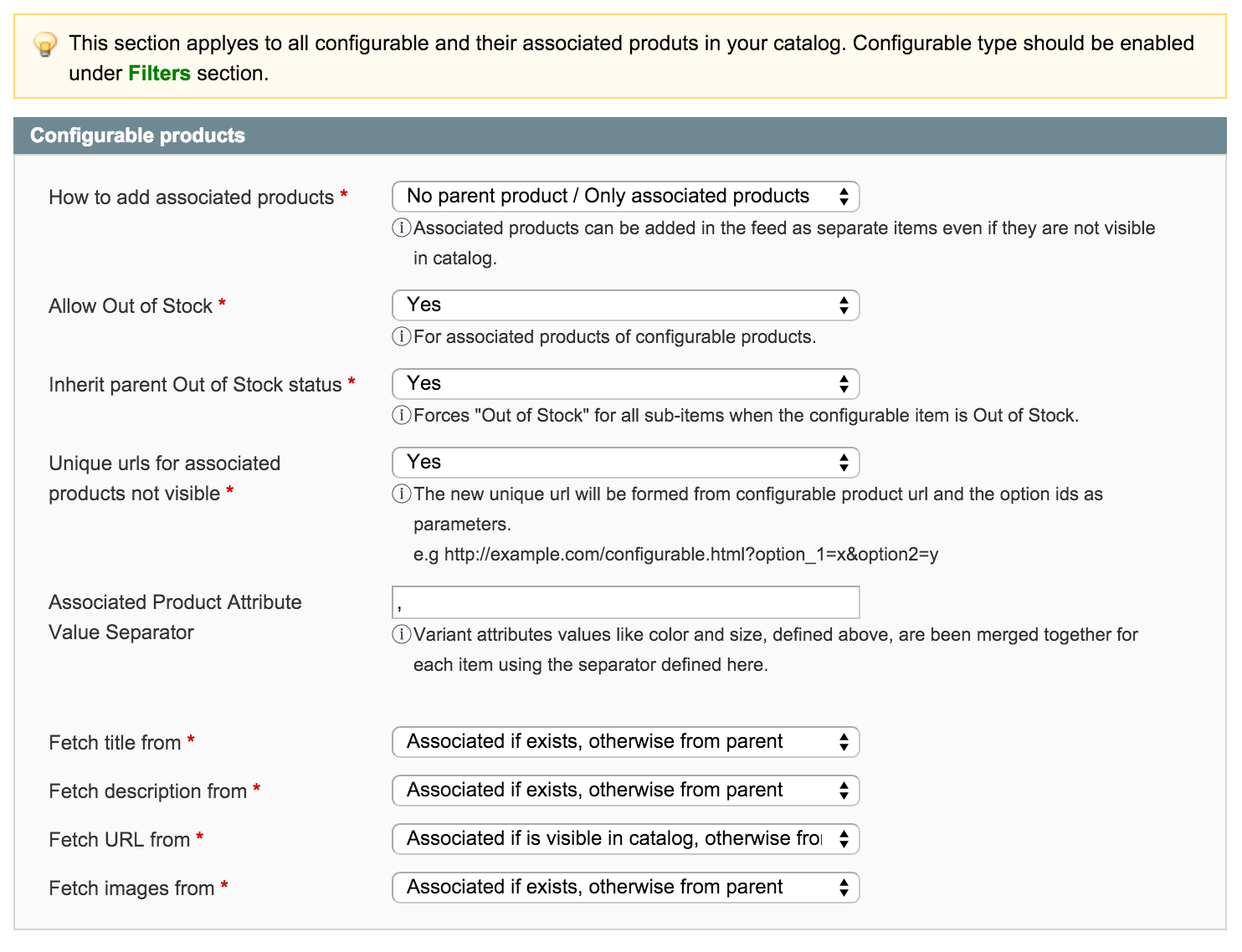
How to add associated products (see Fig 8.5)
This option specifies how configurable associated items will be processed. It has three options:
- Only parent / No associated products
- No parent product / Only associated products
- Both types - parent product and associated products
The recommended option for a google shopping feed is to use the option No parent product / Only associated products, which would list all associated items of the products but miss the configurable itself.
In order for this option to work, configurable type has to be selected under the Submit only products of these types under the Product Filters section, regardless of the option you choose here.
Fig 8.5 Configurable Products Tab
Allow out of stock
This option can filter out associated items that are out of stock, regardless of what's been set under Allow Out of Stock setting from Product Filters section. The goal is to allow you to remove out of stock associated items even if you want to include regular out of stock products.
Inherit parent Out of Stock Status
Dictates how the parent configurable item will behave when all associated items of a configurable are out of stock, the configurable itself will become out of stock. It will not do the same for in stock items.
Unique URLs for associated products not visible
When associated products are not visible in catalog on their own, they are accessed through the configurable item URL, making it hard to tell which products we're targeting. Activating this option will append extra parameters to the URL, making it unique.
Ex: http://example.com/configuable.html?color=123&size=99
When accessing this kind of URL, there's a special JavaScript logic on products page automatically selecting drop-downs or radio buttons to reveal the intended product details: image, price, etc.
Associated Product Attribute Value Separator
When parent products are added to the feed, the variant information like color and size is been composed using all possible values that their associated items could take. To list all of them, a separator is been used, and it can be specified here.
Ex: color = blue, yellow, brown
This option only works for columns using the Variant Attributes directive in the Column Map.
Fetch title from
Tells where to grab product name of associated items when they are included in the feed. Has the following options:
- Parent only
- Associated only
- Associated if exists, otherwise from parent
- Parent if exists, otherwise from associated
The recommended option Associated if exists, otherwise from parent should cover most cases of configurable product setup, doing a failover to configurable parent when no value is found on the associated item itself.
Fetch description from
Tells where to grab description of associated items when they are included in the feed. Same options and conditions apply as for the Fetch title from setting.
Fetch URL from
This allows you to dictate which URL to present to associated item with depending on it's status in the catalog. Has the following options:
- Parent only
- Associated if visible in catalog, otherwise from parent
In most cases grabbing the parent URL is enough, but when the associated items are also visible in catalog on their own it's probably best to use their own URL so that the appropriate product information is displayed on the page when accessed.
Fetch image from
Tells what images should be used when associated items are included in the feed.
Has the following options:
- Parent only
- Associated only
- Associated if exists, otherwise from parent
- Parent if exists, otherwise from associated
Most of the times the images are set directly to the configurable item and those are sufficient, but sometimes when you want to feature out some variant characteristics, you would set individual images on the variant items.
Some stores are using extensions to bypass default Magento behavior when it comes to Configurable Product Price (CP Price). It shows Associated Simple Configurable Product Price (Associated SCP Price) instead of Configurable Product Price.
No comments to display
No comments to display