
Categories Map
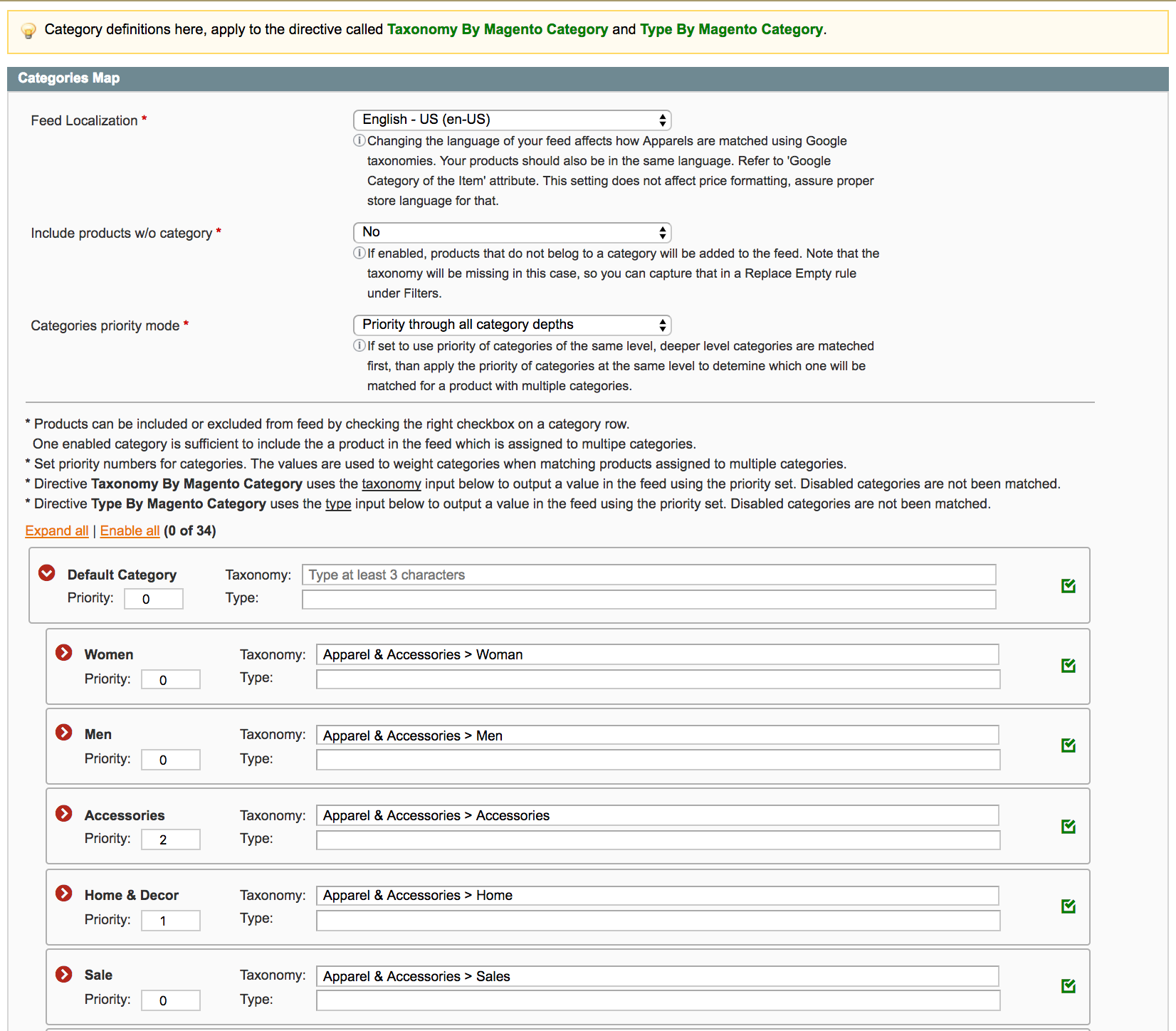
This map works as a product filter by categories, also taxonomies defined here output through Taxonomy By Category under Columns Map.
Feed Localization
Set the Feed Localization to match target country locale. Your product titles and descriptions should also be in this language.
Changing the language here affects the language of taxonomies, and autocomplete under Map Product Categories to Taxonomies depends on choosing the language first.
Note, this setting does not affect price formatting. Price formatting depends on what is set for your store under System > Configuration > Locale Options > Locale. (see 7.5)
Include Products w/o category
This setting aims to filter products that are missing categories in your catalog. It's complementary to category filter checks from Map Product Categories to Taxonomies.
If you do include products without categories, note that they will be missing taxonomies, so to set a default taxonomy for those, set a Replace Empty rule. (see 7.5)
Categories priority mode
Defines how the Priority values defined for each category in the widget are used when matching them. Priorities are used in certain directives to differentiate which categories matter most for products assigned to multiple categories. For instance priorities are been used with directives like Taxonomy by Magento Category, Type by Magento Category or Type by Magento Category Path.
Higher priority values are matched last.
Fig 7.5 Categories Map
Map Product Categories to Taxonomy
Taxonomies defined here output using the Taxonomy By Category directive in the Columns Map.
Use the checkboxes and deselect categories you do not want to include in the feed. Use the input reading "Type at least 3 characters" to fill in taxonomies using an autocomplete list. (see Fig 7.6)
Fig 7.6 Map Product Categories to Taxonomy
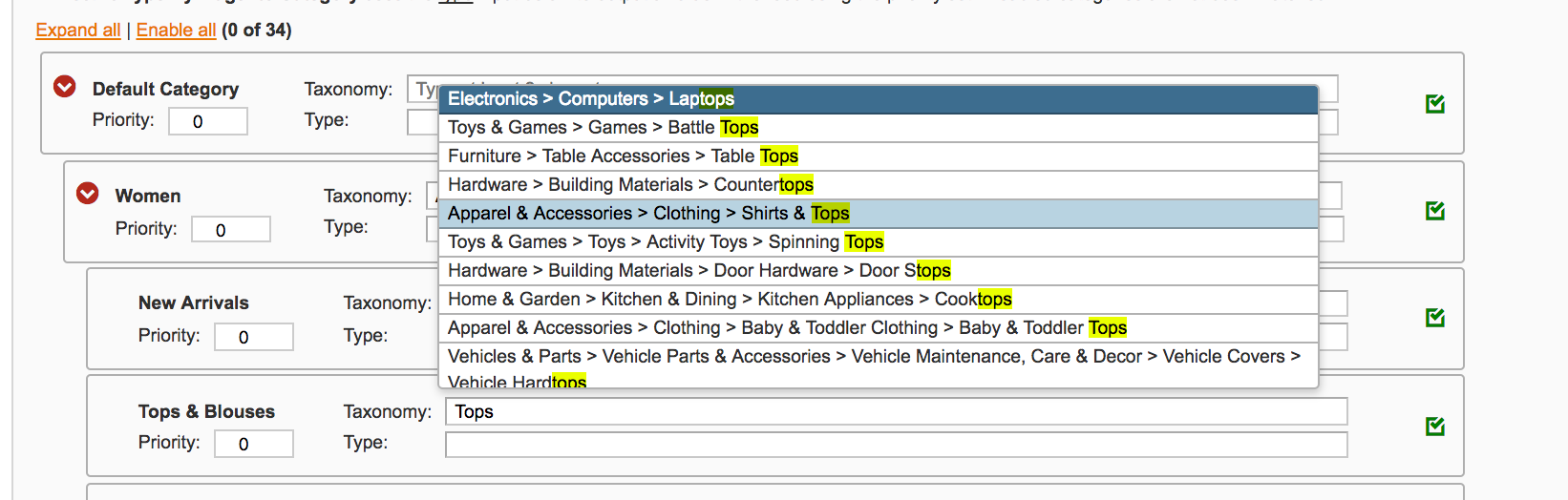
Use the arrows to expand the category tree, and try to find deeper taxonomy path for each category.
Save feed configuration !
No comments to display
No comments to display