
Adding a feed
Select the feed type
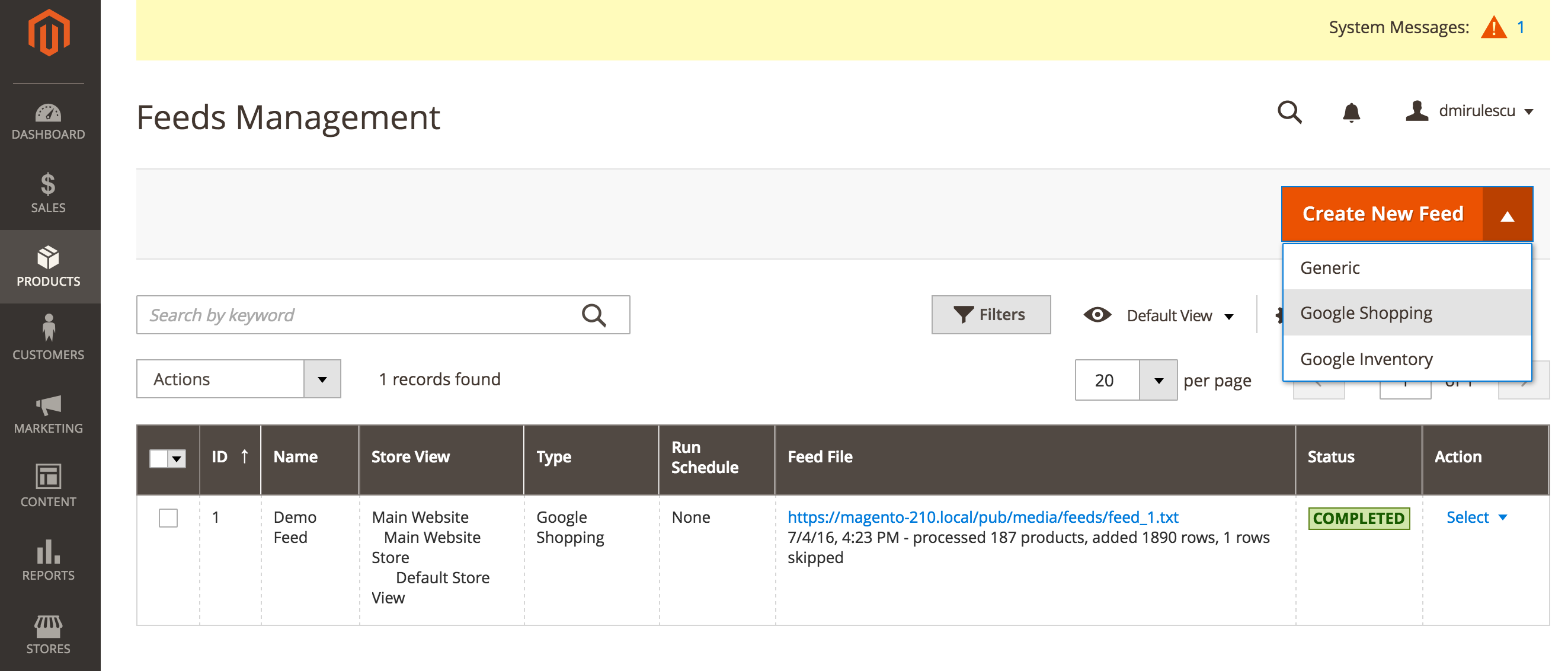
From Rocket Shopping Feeds screen, click on the arrow next to Create New Feed button and select the feed type. (see Fig 8.1)
Choosing the feed type, it fills in with predefined template, but any product feed can be configured, starting from Google Shopping template and further adjusting columns.
Fig 8.1 Adding a new feed
Name the feed and save it
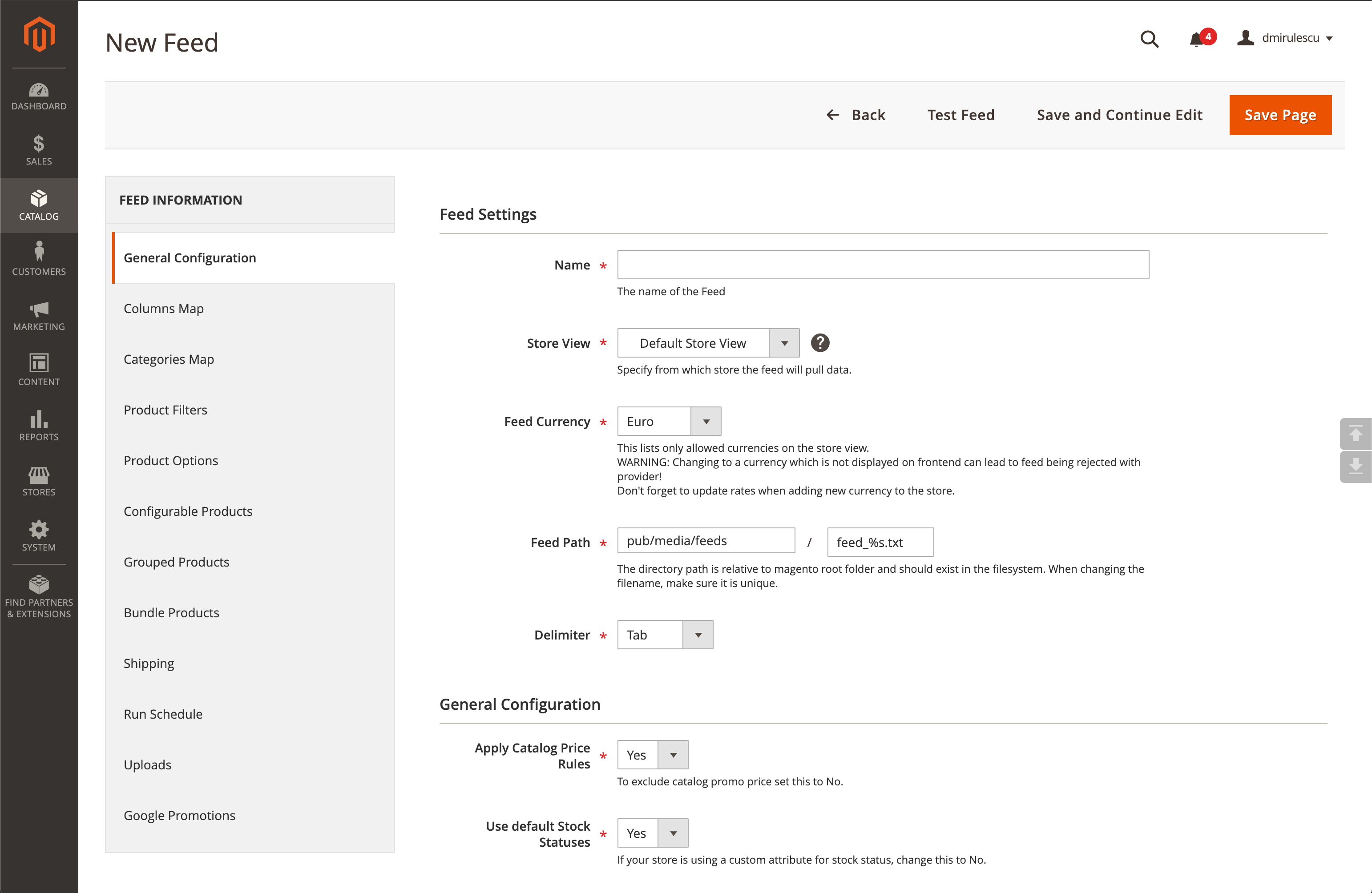
The next screen requires you to enter a name for your feed. Note this is not the feed filename, but a name which lets you identify it in the admin.
For default output settings, just hit Save Page to finish adding it. (see Fig 8.2)
Continue the Getting started steps which correspond to the marketplace and feed type you have chosen
Fig 8.2 General Configuration Tab
No comments to display
No comments to display