
Custom Options
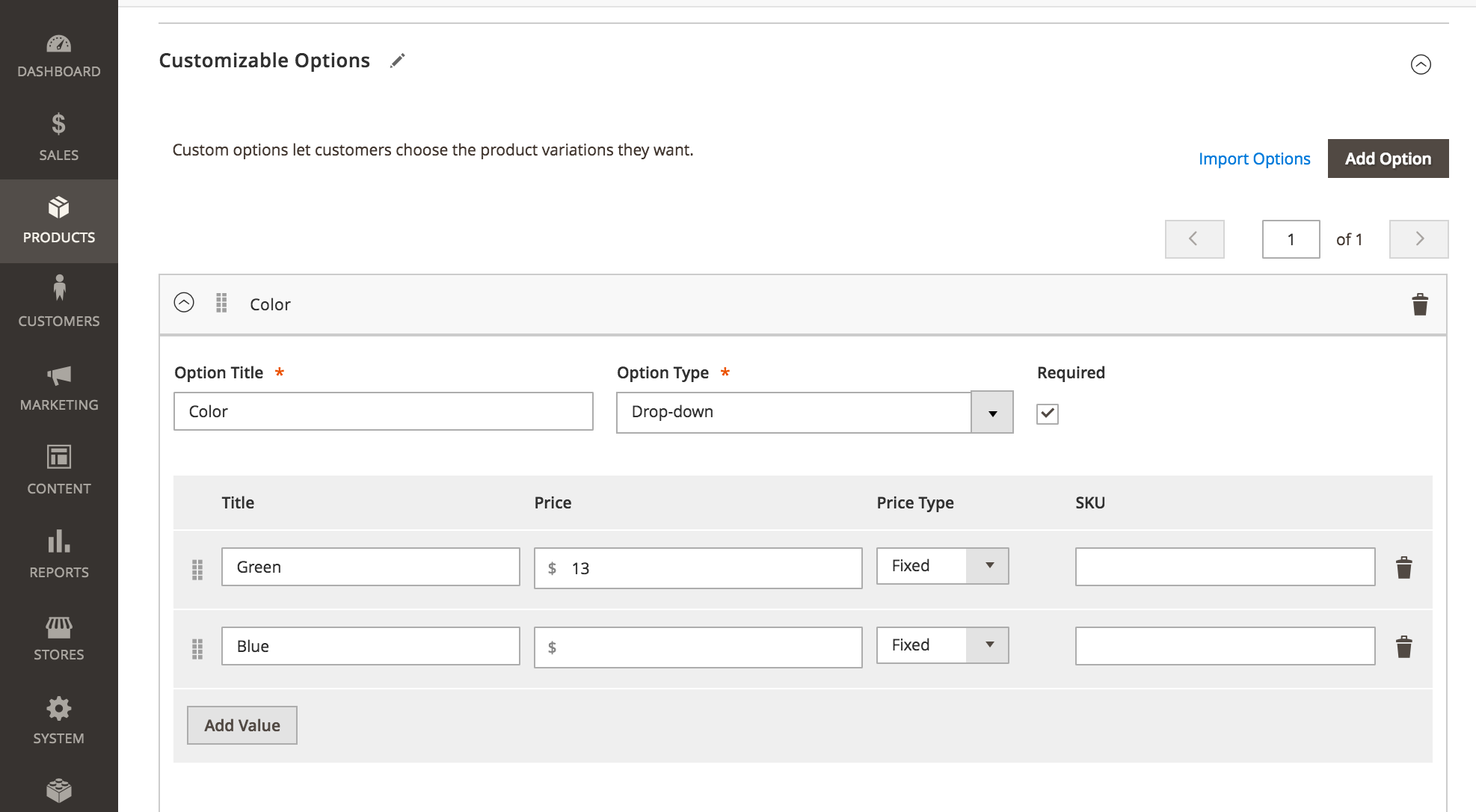
This section is handy when your catalog has apparels that hold size or color properties as product Custom Options, which may have different pricing or different SKUs. (see Fig 14.1)
In order for your custom options to be added in the feed, you'll have to use the Custom Option directive in your Columns Map definition.
Fig 14.1 Example of custom options product
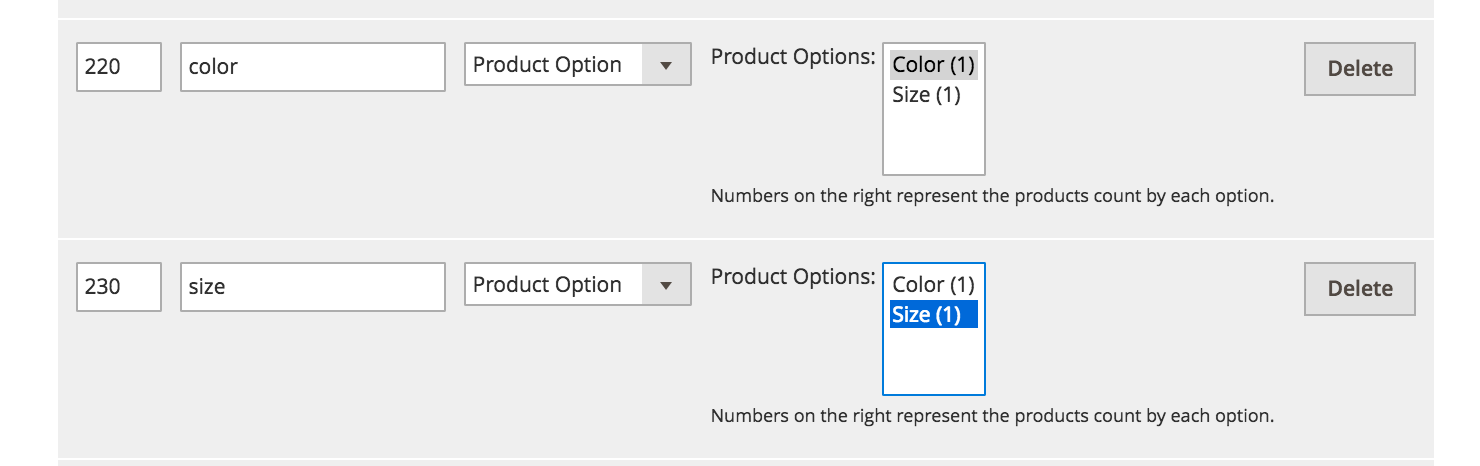
In case the catalog contains both apparels as simple products with custom options, and configurable products, the recommended setup is to have size and color columns set in the Columns Map as Product Options directive. This will process custom options.
Then under Product Filters, set a Replace Empty rule for size and color columns to map on Variant Attributes directive. This will process configurable attributes. (see Fig 14.2)
Fig 14.2 Example of using the Product Options directive in the Columns Map.
How to add product options
There are two ways you can process those products into the feed:
- One row, having options concatenated into the column output.
- Multiple rows, one for each option combination
In case the One row option is selected, the output is one row having all option values as comma separated. I/e/:
- color = red, blue
- size = S, M
If the multiple rows is set, the output is a row for each options combination. I.e.
- color = red, size = S
- color = red, size = M
- color = blue, size = S
- color = blue, size = M
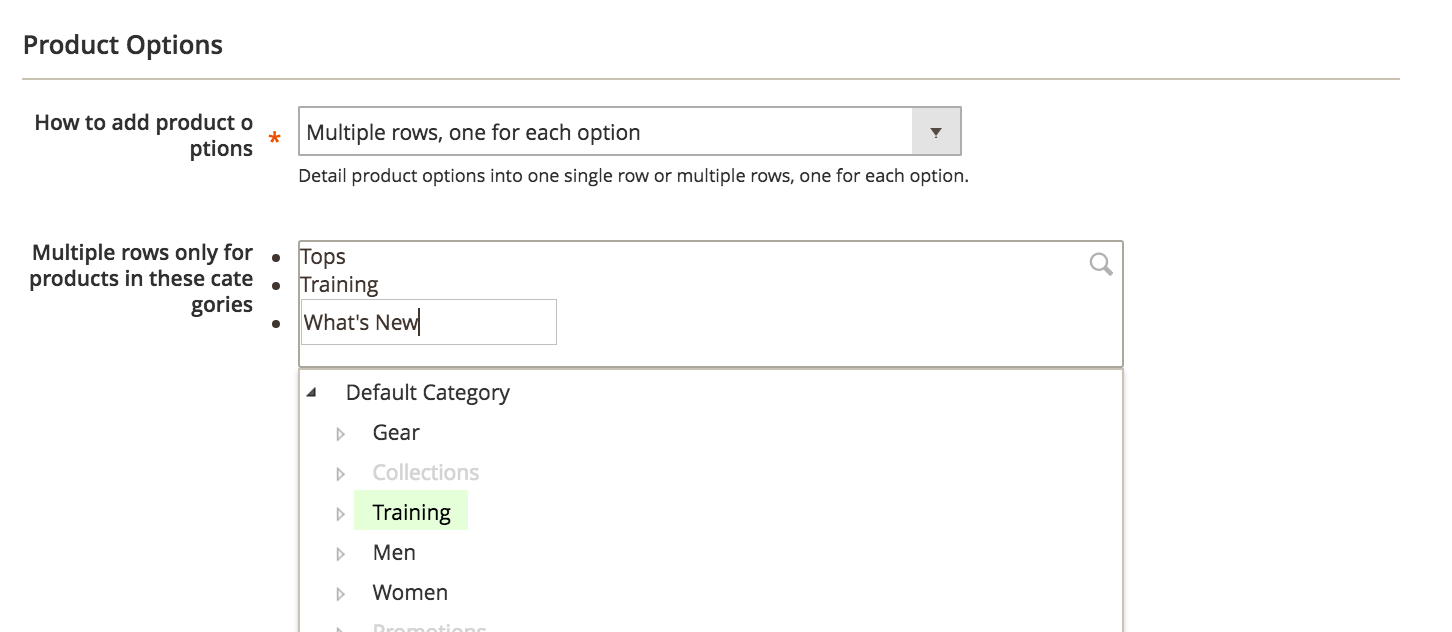
Multiple rows only for products in those categories
This option lets you select which of the product categories should be treated as apparels, so those will be added as multiple rows in the feed with respect to custom options. The rest of the products will simply have comma separated option values. (see Fig 14.3)
Fig 14.3 Adding product options
No comments to display
No comments to display