
Cloning a feed setup
Cloning a feed would help to create a copy of one of your feeds which you can then modify. This would save time in creating similar feeds in terms of feed configuration.
The type of the feed cannot be modified on a clone.
Cloning can be a handy tool in the following situations:
- Set same feed for multiple stores
If you have multiple stores, each with it's own language, you would want to create a feed for each of them. After cloning a feed, change the Store View and Feed Currency under General Configuration, and if appropriate, adjust Feed Localization under Categories Map. - Try out different feed configs for same store
After cloning the feed, you can change the configuration of the clone and Generating the feed or Test the feed by a representative SKU, then compare it to the original feed.
Step-by-step guide
Clone existing feed
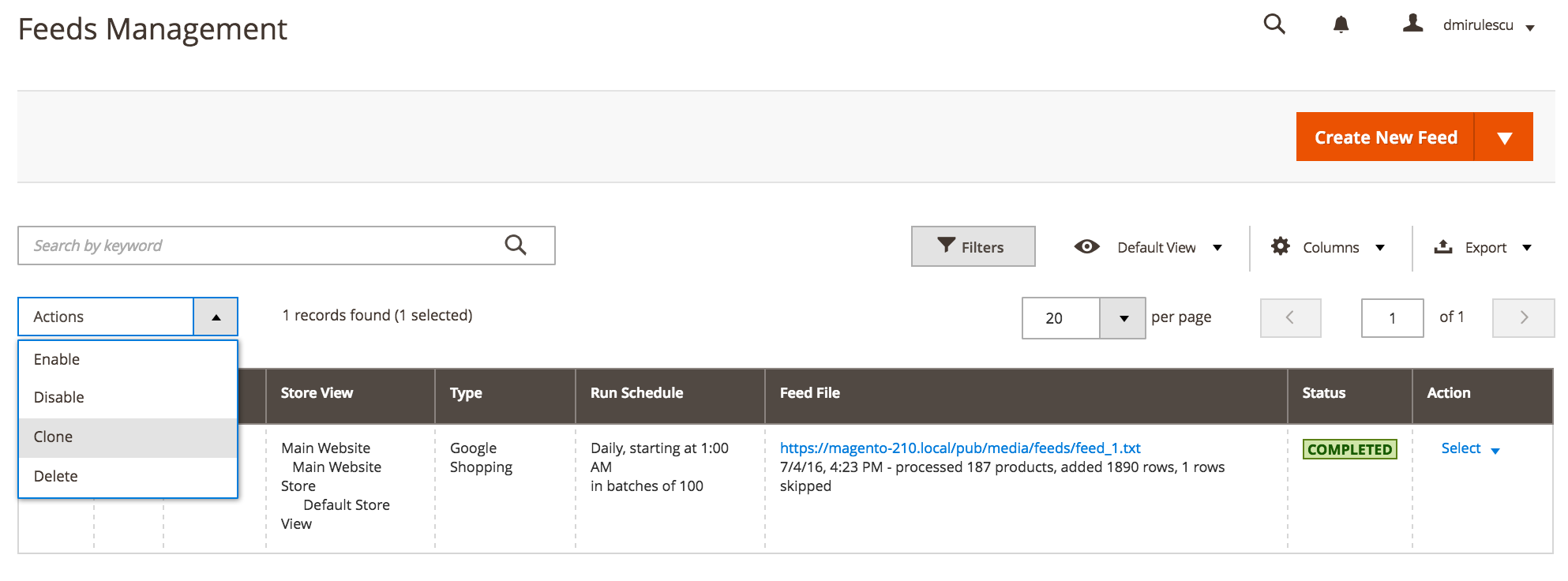
From Rocket Shopping Feeds grid, select the checkbox at the beginning of the row for the feed you want to clone and select action clone in the dropdown of grid Actions. Click on submit button to complete the action. (see Fig 22.1)
Fig 22.1 Clone existing feed
Modify and generate the new feed
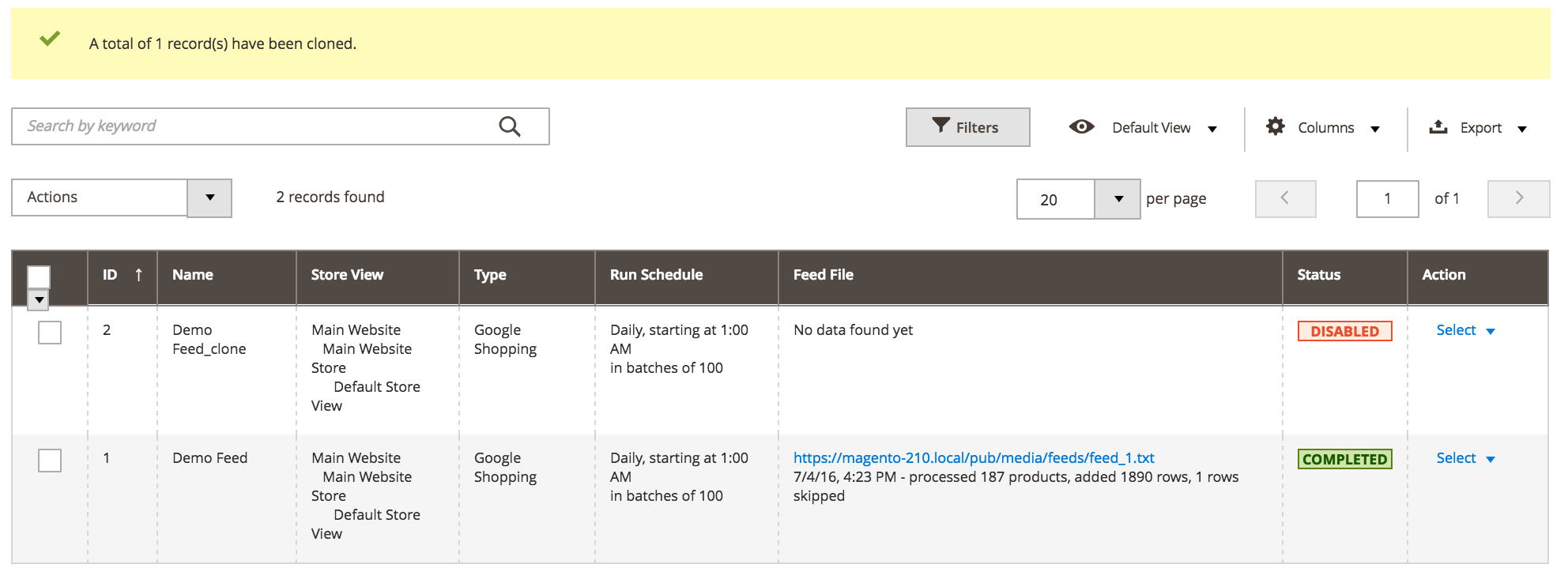
After cloning, a new row will appear in the grid. The new feed has the same name but suffixed with the word _
clone.You can now modify the clone configuration by using the configure button on it's row, or you can Run the feed. (see Fig 22.2)
Fig 22.2 Feed table
No comments to display
No comments to display