
Installation and upgrades
Pre-requirements
The following guide assumes you have command line access to the hosting server where Magento is installed. To access the command line on your server you would use the Terminal app, on Mac, or use a program like Putty for a windows computer.
default Magento 2 requirements are sufficient.
Magento >= 2.0.0, PHP >= 5.6.x
Backup your installation
Installing or upgrading this extension will make changes in your database, so it is always best to have a backup before proceeding. You could simply use the mysqldump command on your server to save a copy of your db, or do a complete backup using the Magento client:
php bin/magento setup:backup
Composer installation
Get the extension from https://marketplace.magento.com/rocketweb-module-google-shopping.html
Configure repo access
Login to marketplace account and navigate to My Profile > Marketplace > Access Keys and generate new keys.
Place the access keys into auth.json file under magento root:{ "http-basic": { "repo.magento.com": { "username": "<public-key>", "password": "<private-key>" } } }Run composer install
composer require rocketweb/module-google-shopping --update-no-dev --no-plugins
Run setup and clear cache
php bin/magento setup:upgrade
php bin/magento cache:flush config layout
Cron setup
The extension is relying on Magento's cron to generate the feeds on schedule or on demand. Cron command should be running each min.
* * * * * php /<Magento_path>/bin/Magento cron:run
Running feed generation takes time and will hold other Magento cron tasks until it is finished. So if your catalog is large and Magento install runs other important backend tasks through cron, there is an option to detach feed generation from Magento cron. This way feed generation would have less impact on the other backend tasks cron might be running.
Upgrades
Upgrading from older versions of the extension follows the same steps as described in the Composer Installation section, the only difference would be to specify the version in the composer require command, for example:
composer require rocketweb/module-google-shopping:2.3.0 --update-no-dev --no-plugins
The other way of doing it is to edit composer.json in magento root, look for extension entry and change the version. Than run:
composer update
If this is not a composer install and you have the extension files, uploaded to replace the old files on the server. Finally you'd have to run the setup:upgrade and flush Magento cache.
Feeds Management
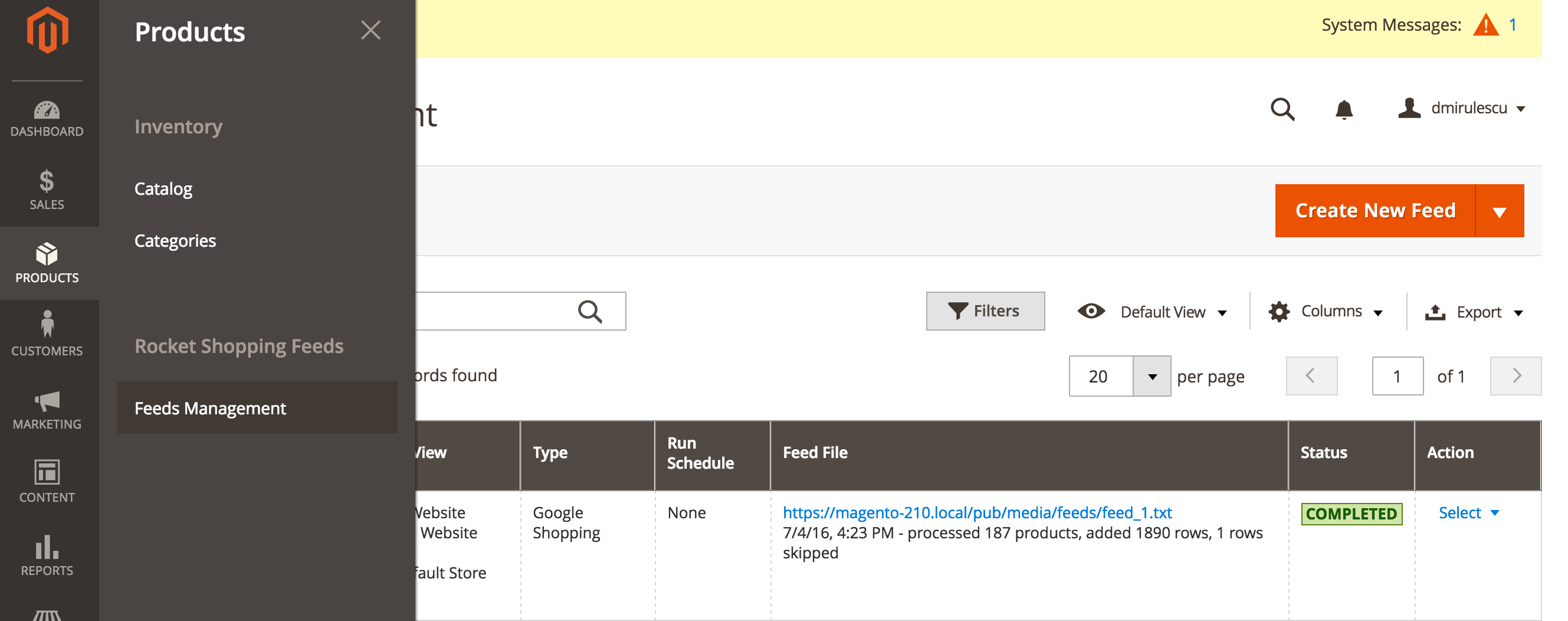
After the extension was installed, look under Products > Rocket Shopping Feeds in the store admin, to start setting up your feeds. (see Fig 1.2)
Read more about managing your feeds.
Fig 1.2 Rocket Shopping Feeds
Troubleshooting
Composer error:
Could not find a matching version of package rocketweb/module-google-shopping. Check the package spelling, your version constraint and that the package is available in a stability which matches your minimum-stability (stable).
It means composer does not have proper repository access to download the extension, make sure the access keys from your auth,json correspond to marketplace account the extension was purchased. Keys are found under My Profile > Marketplace > Access Keys as instructed in step 1 from composer installation on this page.
I don't see Rocket Shopping Feeds in the admin.
Make sure there are no errors when running composer and magento setup:upgrade. Also make sure you are installing on the correct server, one way to check is to create a test.html file in Magento pub folder and try to access it in your browser http://<your_shot>.com/test.html. If you're getting 404, you're trying to install on the wrong server.Feeds are not generating. After using the "run now" button, status is changed to Pending but never changes.
Usually it means magento cron is not running, or there are some other cron tasks taking longer or blocking the chain of processing causing cron schedule entries to be missed.
The fix is to detach feed generation from magento's cron.My site is broken.
Our extension is significantly modularized and we have never yet seen it break any site when it's fully uploaded. If your site does break, try reverting from a backup and contact us for support through http://help.rocketweb.com
No comments to display
No comments to display