
Automatic items update (microdata)
If you don't update prices more than once per day, you can still benefit from Microdata for stock information:
Google will be able to see when a product goes out-of-stock, or back in stock, and mark it in Shopping.
This will prevent item rejection due to mismatched stock info.
Benefits
If you update prices during the day, regularly hold promotions and special offers, or have low-stock items that sell fast, then microdata will help you:
keep prices, availability and condition fresh in Google
validate your products in Google's strict pricing consistency rules
improve user experience, traffic to your product listings, and higher conversion rates because users already see the correct price on Google Shopping
In contrast, if you choose not to enable automatic item updates in your account, items with mismatched price and availability will be temporarily disapproved rather than updated.
Prerequisite
You'll need to have price and availability columns in the feed, these are enabled and set up by default. Also note that the settings on your feed configuration will influence the output of microdata tags. For instance on configurable products or mapping attributes in the feed columns.
Step-by-step guide
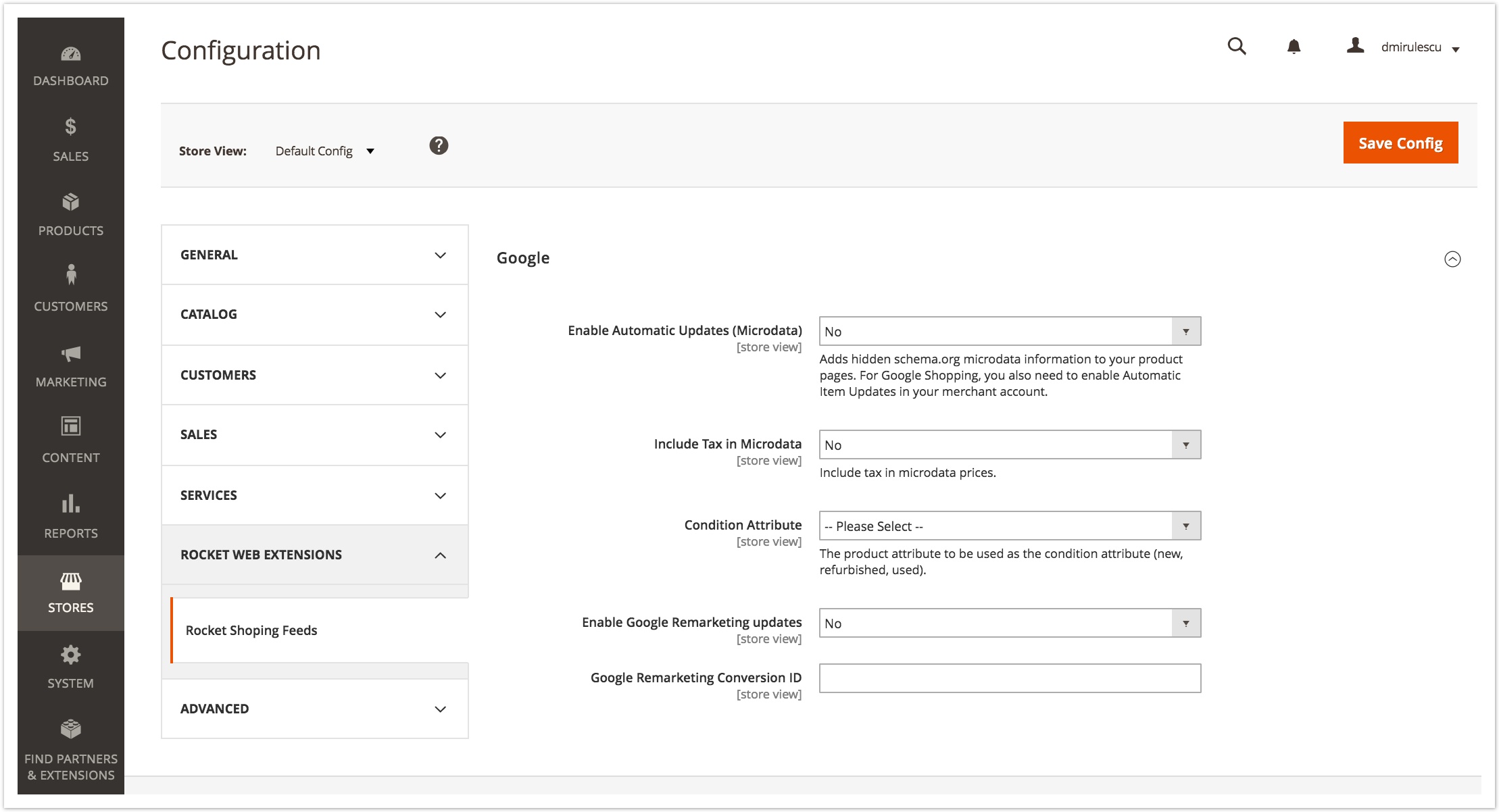
Activate Microdata item updates from Stores > Configuration > Rocket Shopping Feeds
Set the Enable Automatic Item Updates (Microdata) = Yes. and adjust "Include Tax in Microdata" to match the microdata prices. It is best to match the setting so that the prices are equal with the one displayed on the page and included in the feed.
Condition Attribute needs to be set in order to output the condition property of microdata.
To enable google remarketing tag on product pages you should fill in the appropriate setting on this page.
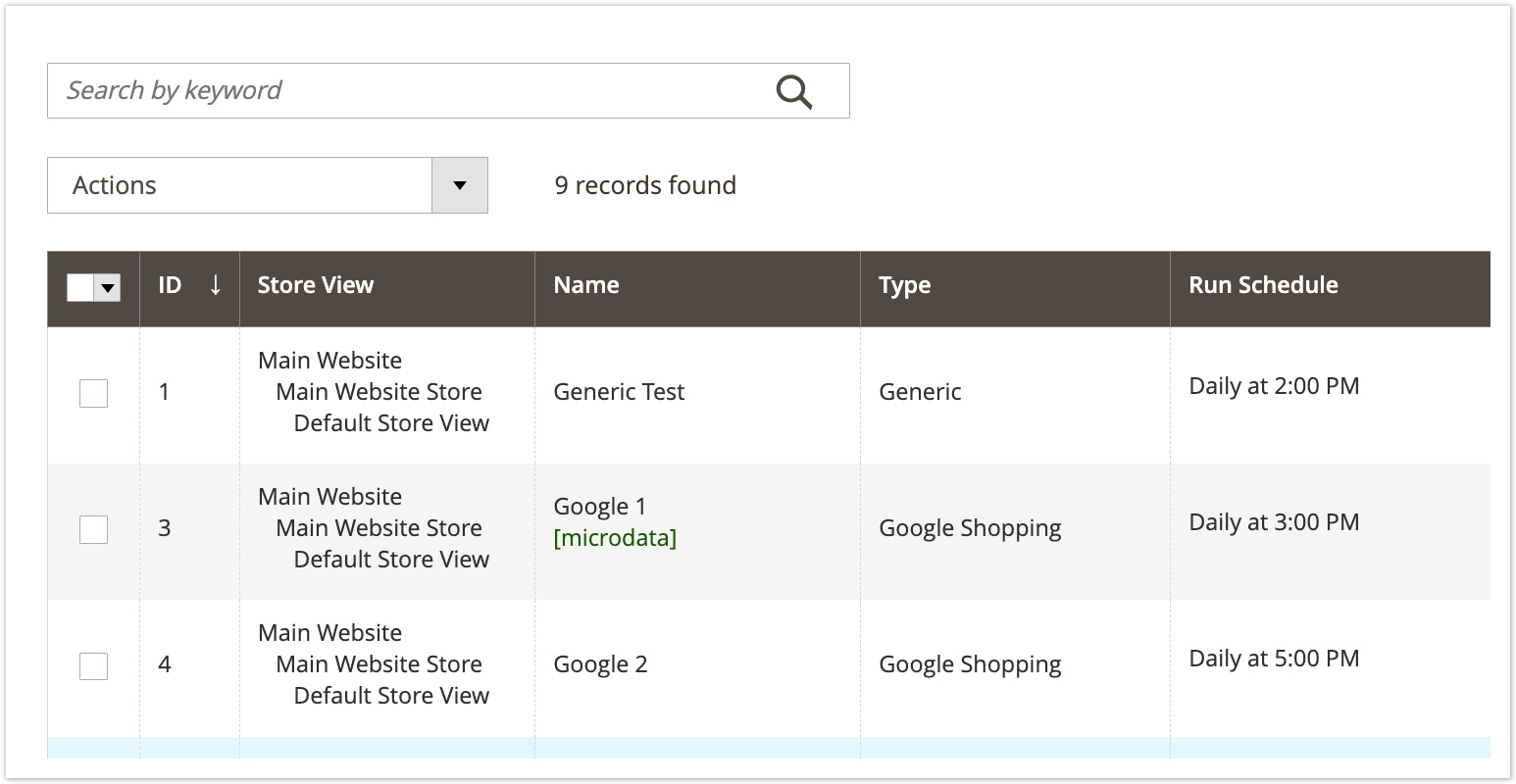
Mark the feed as data source for microdata.
If you are running a single feed by store view, they should be marked automatically. But if you have multiple feeds defined in the magento admin, you may edit them and choose one under General Configuration > Use for microdata as a data source for microdata on that store view. Price, availability and condition attributes from that feed will be used on product pages on frontend with microdata.
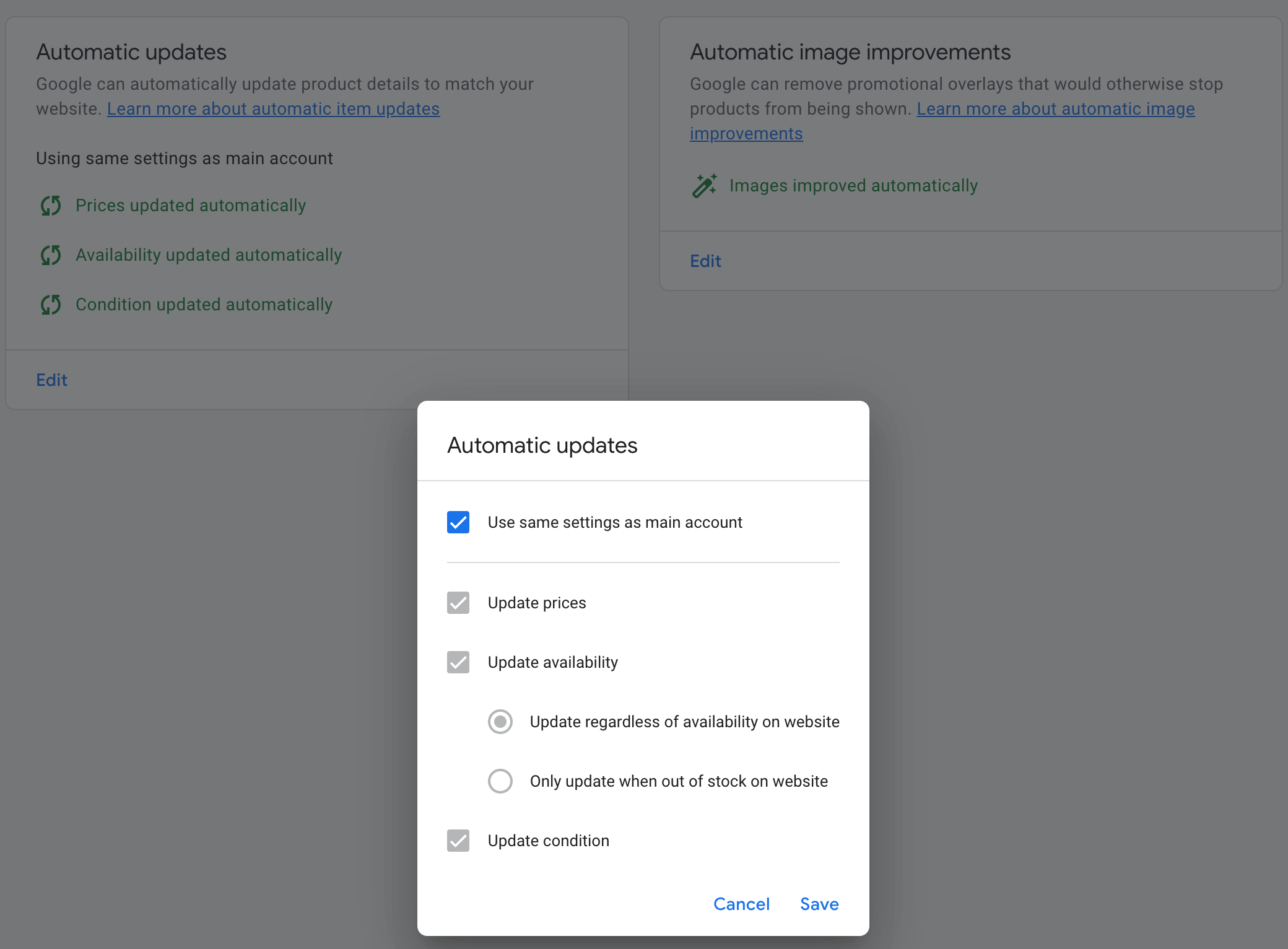
Enable automatic item updates in Google Merchant.
Go to Settings > Automatic improvements > Enable automatic item updates in your merchnat center
Select "Price and Availability" and check "Also update items that are 'in stock' on my website but 'out of stock' on Shopping." and click Save changes.
Troubleshooting
Google provides a handy tool to see what microdata is enabled on your product pages.
Just paste the URL to a Product Page and you should see all the items on that page with their respective price and stock status.
→ http://www.google.com/webmasters/tools/richsnippets
Microdata missing?
You should first verify that this particular product is included in the feed.
if the product is not in the feed, then microdata may not appear correctly
if the product is missing Stock and Price columns in the feed, then microdata will be missing them as well
and that all caches are cleared - you'll need to see a fresh Product Page for the new info to work. So a full clear of Full Page Cache / Block Cache / 3rd party Varnish caches will be needed before your product pages will contain microdata. The "Flush Cache Storage" button will clear all caches in a default Magento installation
If you use another extension that outputs microdata in the Product Page, you should consider disabling it, or removing price and stock info from its output.Our extension will always output the exact Product ID, availability, price and currency that you send in the feed - this is important for successful Google Merchant validation.
No comments to display
No comments to display